Photos Workbench 1.7 is out today with a new feature and two new languages: German and French.
The main addition is practical: you can now drag albums between folders directly inside Photos Workbench, letting you reorganize the structure of your Apple Photos library without workarounds. The update also adds full French and German localizations, making Photos Workbench available to a broader audience.
Rearrange albums in Apple Photos
Photos Workbench has always been able to work with the albums you created in Apple Photos to organize your library. Up until today, when you wanted to rearrange your albums, you had to leave Photos Workbench and return to Apple Photos to complete the task. No longer.
Photos Workbench 1.7 adds drag-and-drop album rearranging. You can grab an album and drop it into a different folder. That’s all there is to it.
Your iPhone geotags every photo automatically. Your DSLR or mirrorless camera almost certainly does not. Sometimes your best photos and most precious memories lack geotags.
That gap — between smartphone shots that know where they were taken and camera shots that don’t — is the whole reason geotagging software exists.
If all your photos come from a phone, you probably don’t need this article. But if you shoot with a dedicated camera, or if you care whether your location data survives a switch from one app to another, read on.
Know where you took that photo
By adding geotags to your photos, you basically “pin” them to the places they were taken. Geotags create a permanent record of where a photo was taken.
They allow photo cataloging tools like Apple Photos and Adobe Lightroom to organize photos by location.
Geotags add to the “story” of a photo. A photo pinned to a map – at the exact spot where it was taken – has context. A series of tagged photos documents the path taken. There are several options to share your photos with their geoinformation. Google Photos and Flickr for example can show their location an map. With Google My Maps or Google Earth, you can display a series of photos pinned to their locations.
Google Photos: a photo and its metadata, including a map
Find that photo
Years from now, you may not remember when you took the photo you are looking for. But you will remember roughly where you took it.
Sometimes, you need to find a good picture of a specific spot. For example, you want to illustrate a blog post on the Golden Gate Bridge. Over the past years, you’ve visited the site several times and took a lot of different pictures. In this case, searching by date will prove arduous. Consulting a map with all your images represented by pins is a lot more efficient.
Map View in iPhoto: Pins represent pictures taken at these locations
We’re happy to announce Photos Workbench 1.6, a performance-focused update that makes organizing and curating your photo library faster and more reliable.
If you use Photos Workbench alongside Apple Photos, this update improves the everyday workflows that matter most: browsing large libraries, comparing similar shots, and quickly identifying your best photos.
This release also follows closely on the heels of another major update: HoudahGeo 7.1, which introduced viewing direction and map improvements. Together, these updates continue our mission of making photo management on the Mac faster, clearer, and more enjoyable.
Compare photos, cull, and curate your Apple Photos library
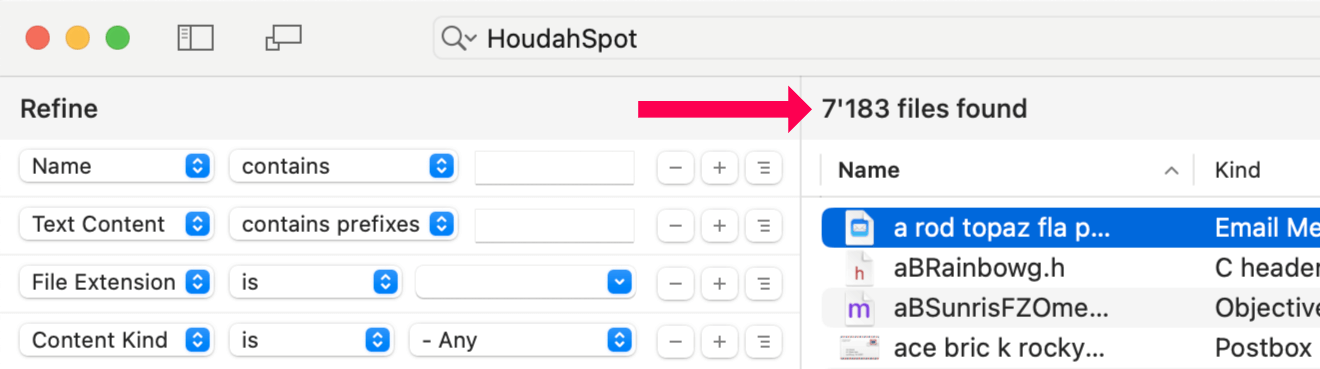
When you don’t quite remember where your files are—or what exactly they were called—your best strategy is often to begin broad and narrow as you go. HoudahSpot excels at this workflow. It gives you powerful tools to incrementally refine a search based on what you see in the results.
This post walks through a highly effective technique: start with a flood of matches, then prune and shape your search using what you learn from those results. Along the way, we’ll use drag-and-drop shortcuts, location pruning, and Find by Example to quickly zero in on the files you want.
Start Broad: Let the Results Flow In
Begin by typing a few words into the main search field. These might be:
Terms you expect in file names
Words likely to appear in text content
Keywords that “should” narrow things down—but maybe not enough
Hit Return and watch the results roll in. HoudahSpot will typically return thousands of matches. That’s fine—we want this. The next steps are all about sculpting this mass of information into something manageable.
As the results come in, use:
Metadata columns to sort and surface patterns
Quick Look preview to confirm visual relevance
Text preview to check keyword context
You’re not trying to find the right file yet. You’re scanning for clues.
We’re thrilled to announce the launch of HoudahGeo 7.0 — the biggest update ever to our flagship geotagging solution for Mac.
Since its debut in 2007, HoudahGeo has helped photographers and travelers document their journeys by adding precise GPS location data to their photos. With version 7.0, HoudahGeo steps into a new era: it’s now also your go-to tool for video geotagging.
Whether you’re a photographer, filmmaker, or digital storyteller, HoudahGeo 7.0 gives you powerful tools to build a location-aware media library that goes beyond still images.
🎥 Geotag Videos Alongside Photos
This is the #1 feature request we’ve received — and it’s finally here: video geotagging.
You can now tag your travel videos with GPS coordinates just as easily as photos. Whether you’re working with drone footage, action cams, or smartphone videos, HoudahGeo 7.0 helps you enrich your entire collection with meaningful location data.
Photos Workbench seamlessly integrates with Apple Photos to help you organize, name, and compare your photos.
The Importance of Star Ratings
Star ratings are a powerful tool for organizing and culling your photos and videos. They help you identify your best images and categorize them by quality or relevance.
With Photos Workbench, you can assign star ratings to your photos and videos, ranging from 1 to 5 stars. While the interpretation of each rating is personal, here’s a suggested guide:
No star – Unrated. Still needs reviewing
★ (1 Star) – Rejected. Marked for deletion
★★ (2 Stars) – Keep without adjustments. May have emotional value
★★★ (3 stars) – Okay. Worth investing time into adjustments
★★★★ (4 stars) – Good. Worth sharing
★★★★★ (5 Stars) – Fantastic. Worth printing
For tips on developing a workflow for star ratings, check out our previous blog post.
How to Assign Star Ratings
No matter how you choose to interpret star ratings or structure your workflow, Photos Workbench offers several efficient ways to assign ratings to your photos and videos.
Photos Workbench seamlessly integrates with Apple Photos, providing powerful tools to help you organize, name, and compare your photos. The star rating system is one of the most effective tools in this suite.
The Importance of Star Ratings
Star ratings are invaluable for organizing and culling your photos and videos. They help you identify your best shots and classify images by relative quality or relevance, with ratings ranging from 1 star (worst) to 5 stars (best).
By rating your photos, you can streamline your library by removing the poor shots. This process makes deciding which pictures to share, publish, or print easier. Once your photos are classified, finding specific images becomes a breeze. Browsing your library to rekindle memories is also much more enjoyable when you can focus on the ★★★★ and ★★★★★ images.
Making the Process Enjoyable
While rating photos is an excellent opportunity to revisit memories, it can also be tedious work.
Assuming a 5-star rating is reserved for your best shots—those worthy of National Geographic—it should be relatively easy to identify them at first sight.
That would leave the 4-star rating for the best shots in the current album. However, determining the best photos without constantly comparing them can be challenging. The same holds for the 3-star rating for the best shots in a series of similar photos.
Assigning a rating can feel arbitrary. Would you give the same photo the same rating if you rechecked it the next day?
A structured workflow can simplify the process of assessing the relative quality of your photos.
Photos Workbench helps you easily rate, find, and cull your photos and videos, making your Apple Photos library more organized and manageable.
Rate Your Photos with Ease
Photos Workbench allows you to rate your photos and videos on a scale from 1 to 5 stars. While the exact meaning of each rating is up to personal preference, here is one suggested interpretation:
No star – Unrated. Still needs reviewing
★ (1 Star) – Rejected. Marked for deletion
★★ (2 Stars) – Keep without adjustments. May have emotional value
★★★ (3 stars) – Okay. Invest time into adjustments
★★★★ (4 stars) – Good. Worth sharing
★★★★★ (5 Stars) – Fantastic. Worth printing
Regardless of how you choose to use the star ratings, the better photos always get the higher rating. Thus, Photos Workbench offers filters allowing you to see items above a particular rating. For example, to see the standout shots of a given album, you can filter to show items rated “★★★★ or better.”
Filter Photos by Star Rating: 4-Star or Better
What if you wanted to see only photos with a specific rating?
This 5-minute guided tour of Photos Workbench rushes you past all the landmarks and leaves you wanting. The tour guide encourages you to download Photos Workbench to satisfy your curiosity.
In Apple Photos, titles can hint at what is in a picture or where and when you took it. Descriptive titles are one of the resources we can use to organize and find photos.
Photos Workbench offers several methods of adding descriptive titles to photos:
Find & Replace Text: Change existing titles
Name Format: Build titles from text and tokens
Custom names can include a date and counter. The counter numbers the photos in their current order. Sort photos by date or arrange them manually to number the images by topic or order of preference.
To provide the best experiences, we use technologies like cookies to store and/or access device information. Consenting to these technologies will allow us to process data such as browsing behavior or unique IDs on this site. Not consenting or withdrawing consent, may adversely affect certain features and functions.
Functional
Always active
The technical storage or access is strictly necessary for the legitimate purpose of enabling the use of a specific service explicitly requested by the subscriber or user, or for the sole purpose of carrying out the transmission of a communication over an electronic communications network.
Preferences
The technical storage or access is necessary for the legitimate purpose of storing preferences that are not requested by the subscriber or user.
Statistics
The technical storage or access that is used exclusively for statistical purposes.The technical storage or access that is used exclusively for anonymous statistical purposes. Without a subpoena, voluntary compliance on the part of your Internet Service Provider, or additional records from a third party, information stored or retrieved for this purpose alone cannot usually be used to identify you.
Marketing
The technical storage or access is required to create user profiles to send advertising, or to track the user on a website or across several websites for similar marketing purposes.