
If you’ve ever searched for a file on your Mac using Finder (or even the Spotlight window) but come up empty — or you got tens of thousands of hits and still couldn’t find what you meant — you need a better approach. That’s where Find by Example in HoudahSpot comes in: you tell HoudahSpot “show me files like this one,” and it instantly narrows the search to mirror the example file’s properties.
I want files like this one.
Why “Find by Example” matters
-
You don’t need to know exact names or metadata. Rather than remembering file names or keywords, you just pick a file that resembles what you’re trying to find — perhaps in kind (PDF, Keynote, image), modification date, author, file type, or other metadata.
-
It saves you from manual guesswork. Instead of trying to build a query with multiple criteria (kind = PDF; date modified between …; tag contains …), you let HoudahSpot extract the relevant metadata from an existing file for you.
-
Speed & convenience when Finder falls short. Finder or Spotlight may miss files (if they’re not indexed, in obscure folders, or have strange names), or return too many results. HoudahSpot, built on top of Spotlight metadata, gives you a powerful, interactive, and flexible search interface — and Find by Example accelerates narrowing things down.
How it works — the workflow
-
Open HoudahSpot. Start a new search window.
-
Define your search location(s). By default, HoudahSpot searches your Home folder, but you can include or exclude any folder or drive (e.g. external disks, project directories, archives).
-
Perform an initial broad search (optional). If you know a keyword (e.g. part of the file name or content), type it in the search field and press Start. Alternatively, leave it blank and rely solely on “Example-based” criteria.
-
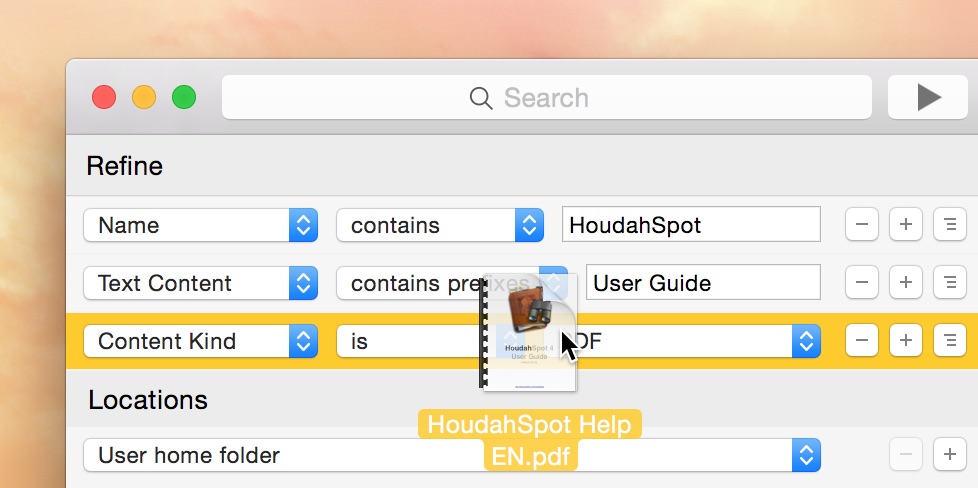
Drag a prototype file onto a criterion.
-
In HoudahSpot’s “Search/Refine” pane, add a criterion such as Content Kind, Content Type, File Extension, Date Modified, or other metadata.
-
From Finder (or from an existing search result list), drag the file you consider representative and drop it onto the criterion row (but avoid dropping it onto a text field). HoudahSpot will read the file’s metadata and set the criterion accordingly.
-
In effect you are saying: “I want files like this one.” The query updates immediately.
-
-
Refine as needed — or negate. You can add more criteria (author, date range, size, tags, etc.), or even use a “NONE of the following is true” group to exclude files matching the example (e.g. to exclude all PDFs).
-
Start or update the search. Click the Start button (or if already running, HoudahSpot will re-run the search after you drop the example). Results will appear instantly.
-
Browse, preview, act. Inspect results via Quick Look or metadata columns, sort as needed, then drag files out to move/copy/tag, or open them directly.
That’s it. Two gestures — drag and drop — and HoudahSpot builds a smart search for you.
Typical use cases
-
“I know I had a PDF somewhere — like this one, but can’t remember where.” Drag one PDF onto Content Kind → find all PDFs. Then add date criteria or folder-scope to narrow.
-
“Give me all files from the same project — same type and date.” Use a representative file from the project to find all related docs (e.g. Word, Keynote, Markdown, PDFs).
-
“Hunt down duplicates or variants.” Find files with same size, content kind or modification date, then manually inspect to isolate duplicates or old versions.
-
“Exclude everything like this.” For example, use “NONE” + example to filter out auto-generated files or specific formats.
-
“Find images with same dimensions / metadata.” Drag one image — you can base the search on pixel dimensions, metadata (EXIF), kind, etc.
Why HoudahSpot + Find by Example is faster and more precise than Finder
-
Finder’s “Search by Kind” or “Type” often provides only coarse filters (images / PDFs / documents), and you may still get overwhelmed results. With Find by Example, you automatically match the exact UTI, kind, file type, and — if needed — other metadata like date, author, tags.
-
HoudahSpot supports arbitrarily many criteria (kind, date, size, metadata, tags, content, etc.) and combination via boolean groups (ALL / ANY / NONE), enabling precise queries difficult or impossible in Finder.
-
Once you set up the criteria by example, you don’t need to fiddle with multiple pop-ups and dropdowns — it’s drag-and-drop intuitive.
Modern Tips for HoudahSpot users
-
Combine Find by Example with filters: After you get results, use HoudahSpot’s Filter feature (e.g. “Folder Name in Path does not contain …”) to exclude unwanted files or folders. This is great if your search location is broad (e.g. entire Home folder or external drives).
-
Use saved searches or templates for frequent tasks. If you often search e.g. “all PDFs modified in last 30 days and larger than 10 MB,” create a template — then just drag an example PDF to activate.
-
Leverage metadata beyond kind/date. You can base criteria on any Spotlight-indexed metadata (author, tags, EXIF, pixel dimensions, file size, etc.). That makes it especially powerful for media files, documents, emails, or creative work.
In conclusion
If you often end up frustrated by Finder’s limited search capability — too many results, wrong kind, no good filters — Find by Example in HoudahSpot offers a smarter, faster, more intuitive way to find files. Just grab a file that resembles what you’re looking for, drag it onto HoudahSpot’s search pane, and let the app build a precise query for you.
Once you try it, you’ll wonder how you ever managed scattered files and endless Finder searches. Give HoudahSpot a shot — and spend your time working, not hunting for lost files.