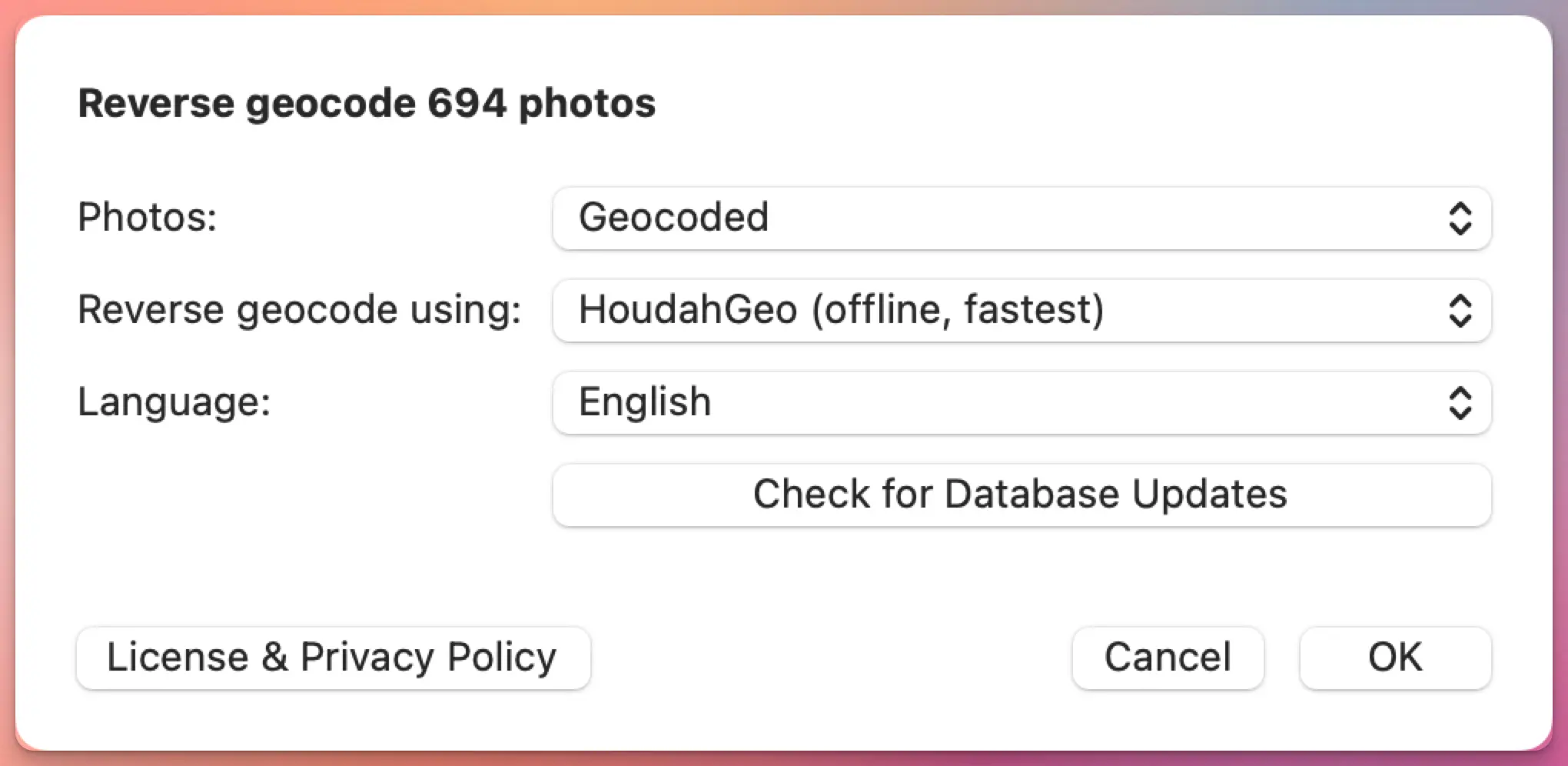
HoudahGeo 7.2 is out, and the headline feature is reverse geocoding: the process of turning GPS coordinates into a city, region, or country name.
If you shoot with a GPS-equipped camera or phone, your photos already carry latitude and longitude. What they don’t carry is the human-readable part. “47.0502, 8.3093” doesn’t mean much at a glance. “Lucerne, Switzerland” does. Reverse geocoding fills in that gap, and HoudahGeo has always let you choose which service does the filling.
With 7.2, there’s a new option, an improved one, and a more flexible way to use the ones you already had.
HoudahGeo 7.2 adds new reverse geocoding options. And a new service!
Photos Workbench 1.7 is out today with a new feature and two new languages: German and French.
The main addition is practical: you can now drag albums between folders directly inside Photos Workbench, letting you reorganize the structure of your Apple Photos library without workarounds. The update also adds full French and German localizations, making Photos Workbench available to a broader audience.
Rearrange albums in Apple Photos
Photos Workbench has always been able to work with the albums you created in Apple Photos to organize your library. Up until today, when you wanted to rearrange your albums, you had to leave Photos Workbench and return to Apple Photos to complete the task. No longer.
Photos Workbench 1.7 adds drag-and-drop album rearranging. You can grab an album and drop it into a different folder. That’s all there is to it.
GPS track logs are one of the most reliable ways to geocode photos. Record a track during your shoot, match the timestamps, and software can determine where each photo was taken.
But what happens when there’s no track log?
Maybe you forgot to start recording. Perhaps the GPS app stopped midway through the hike. Or you just don’t want to run a tracking app every time you pick up your camera.
If you use Lightroom Classic, you’ve probably noticed that its geotagging tools depend heavily on GPX track logs. Without one, you’re largely left dragging photos onto a map by hand.
HoudahGeo offers a better option: geocoding photos using reference photos — images that already contain GPS coordinates. In many situations this is faster and more convenient than recording a track log.
What are reference photos?
A reference photo is simply a photo with a known location.
Most people carry a GPS-enabled camera in their pocket every day. Your iPhone or Android phone records GPS coordinates automatically whenever location services are enabled. Those geotagged phone photos can act as location anchors for the rest of your images.
Adobe Lightroom Classic has included GPS photo geotagging for many years. The Map module can load GPX track logs, match them to photo timestamps, and write GPS coordinates to your images. For many photographers, that’s all they need.
But if you’ve ever forgotten to record a track log, discovered your camera clock was wrong, or wished Lightroom could infer locations from nearby geotagged photos, you’ve probably run into the limits of its built-in tools.
HoudahGeo integrates with Lightroom Classic and handles the geocoding and geotagging tasks that Lightroom either doesn’t support at all or makes unnecessarily difficult.
You switched to a Mac. Good. But now your geotagging workflow is broken — GeoSetter is Windows-only, and it always has been.
If you spent years building that habit — recording a GPX track on a hike, syncing it with your camera photos back at home, watching coordinates land in your EXIF data — you know how satisfying it is. You don’t want to give that up. You just need it to work on macOS.
HoudahGeo is the closest thing to a Mac equivalent. It covers the same core workflow: load your photos, import a GPS track log, let the software match timestamps and assign coordinates. It also supports manual geotagging by dropping photos onto a map, reverse geocoding to fill in city and country names, and writing everything to EXIF, XMP, and IPTC tags without recompressing your images.
HoudahGeo’s reverse geocoding goes beyond what GeoSetter offered: you can choose from five different services, including a fully offline option and a new BigDataCloud integration, depending on what your workflow needs. See how they compare.
A HoudahSpot user recently wrote in with a question that probably sounds familiar if you’ve upgraded to the macOS Tahoe 26.5:
“Using HoudahSpot, is there a way to search for Intel-based applications on my Mac? Upon opening one, I’ve been getting notifications that these apps will no longer work in an upcoming upgrade when Rosetta is discontinued.”
Good question — and yes, HoudahSpot can do exactly that.
What the warning means
When you open an application that was compiled only for Intel processors, macOS Tahoe shows a warning. The message says the app won’t be supported in the next major version of macOS, because that version will no longer include Rosetta 2.
Rosetta 2 is the translation layer that lets Apple Silicon Macs run software originally built for Intel. It has been part of macOS since the first M1 Macs shipped in 2020. But Apple announced it won’t last forever — and macOS Tahoe is sending the first clear signals that the end is near.
The problem with relying on those warnings is that you only see them when you actually open an app. If you have old utilities buried in your Applications folder that you haven’t launched in months, you won’t find out until it’s too late.
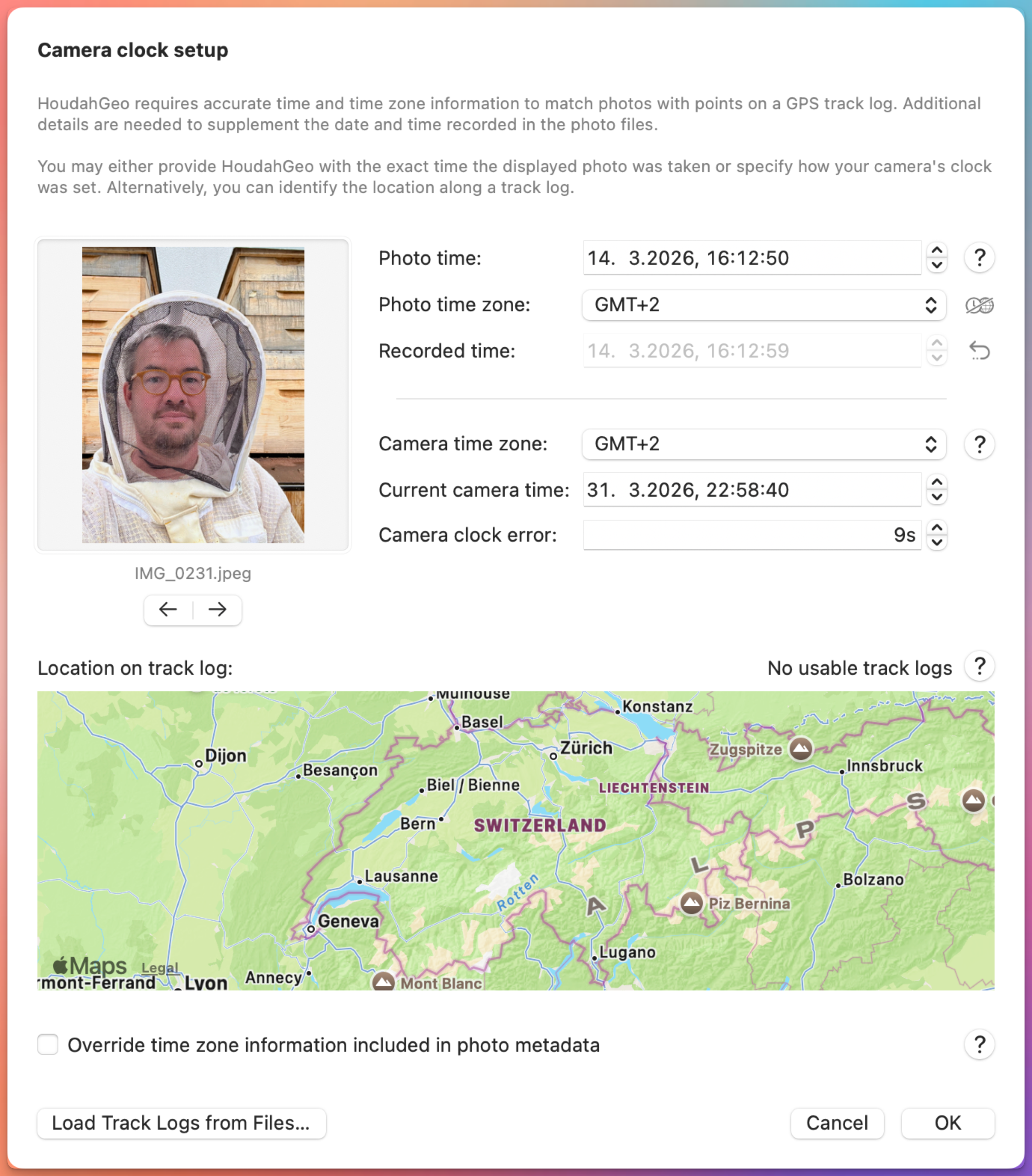
Have you ever tried to match photos with a GPS track log and ended up with pictures placed miles away from where they were taken. If your photos don’t line up with your GPS track log, or show up in the wrong place on the map, the camera clock is almost always the reason.
You might have been standing at a scenic overlook… but your photos show up a few steps or streets away—or even in the wrong city entirely. That’s not a GPS problem. It’s a camera time problem.
HoudahGeo matches photos to locations by comparing photo timestamps with GPS track logs. If those timestamps are even slightly off, the resulting locations will be too.
At first glance the window might look technical. In reality, it’s solving a very practical problem most photographers run into sooner or later — usually right after their first trip where they forgot to update the camera clock.
Here’s how each part works, and a few tips to make it go smoothly.
If HoudahSpot fails to find a file that you know exists on your Mac, the cause is almost always a problem with the Spotlight index. Because HoudahSpot relies on Spotlight, missing or corrupted index entries can cause files to disappear from results.
This guide covers the causes and fixes that are specific to HoudahSpot. For general Spotlight indexing problems – the kind that affect Finder, Spotlight, and every app that relies on the system index – see our companion guide: Why Spotlight on macOS Can’t Find Files.
Why files sometimes disappear from results
When you preview or open a file, macOS may schedule it for re-indexing. HoudahSpot is designed to handle the transition smoothly – keeping the file visible in results while the index updates. But there are two edge cases:
Under heavy system load, you may see a file briefly vanish and then reappear. This is normal.
With a corrupted index, the file may vanish without reappearing. This requires an index rebuild. Refer to the linked guide above for full rebuild instructions.
You remember the name. You may even have opened it yesterday.
Yet when you search with Spotlight, the file doesn’t appear.
If Spotlight on Mac can’t find a file you know exists, you’re not alone. This is a common frustration, and it usually has a practical explanation: indexing problems, privacy exclusions, permissions, low disk space, or simply a mismatch between what you mean and how Spotlight interprets the query.
The good news is that these problems are often fixable. And when Spotlight’s default search interface gets in your way, tools like HoudahSpot can make the same index much easier to search.
If you use Alfred, Raycast, or LaunchBar, you already know how powerful they are. Hit a hotkey, type a few letters, and you’re off — apps launch, calculations run, clipboard history appears.
These launchers are some of the best productivity tools available on macOS.
They can also help you find files on your Mac. But that’s where things can get a little confusing.
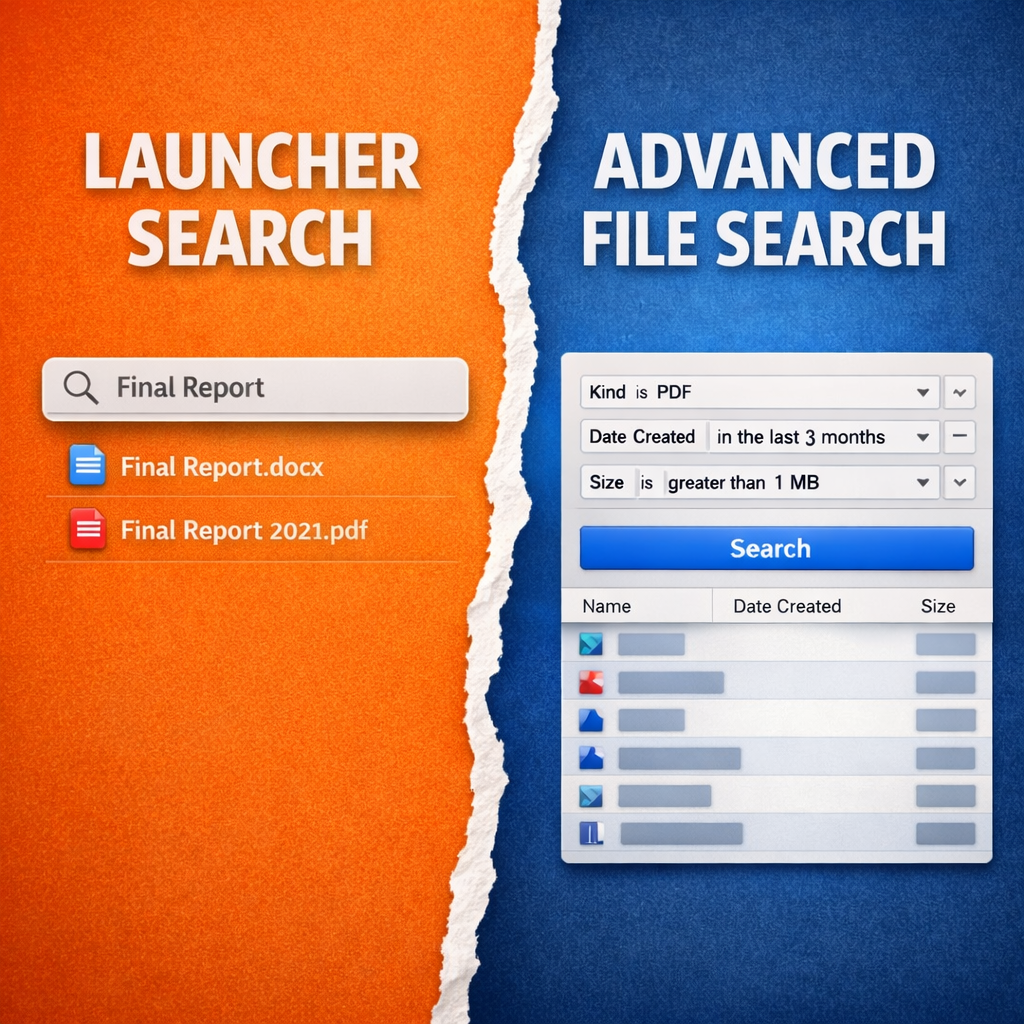
Launchers can include file search, but they’re designed primarily for fast name-based lookups, not for advanced file search. When you need to find files by metadata, content, date, or other attributes, a dedicated tool becomes much more useful.
What Launchers Do Well
When you type a file name into Alfred, Raycast, or LaunchBar, you’ll usually find it quickly. For the common case — “I know roughly what this file is called, I just want to open it” — launchers work extremely well.
They excel at fast, fuzzy matching and prioritizing recently used files. That makes perfect sense for an app launcher.
LaunchBar in particular goes further than most. Beyond launching apps, it’s also one of the best clipboard managers on macOS, with deep clipboard history, persistent clipping across restarts, and a keyboard-first design that rewards investment.
If you’re not using LaunchBar’s clipboard history, you’re leaving one of its best features on the table.
But when launchers search for files, they typically prioritize speed and convenience over structured search. They’re optimized for quickly opening something you already have in mind.
Launchers help with quick file search. Deep dive needs a file search app.
To provide the best experiences, we use technologies like cookies to store and/or access device information. Consenting to these technologies will allow us to process data such as browsing behavior or unique IDs on this site. Not consenting or withdrawing consent, may adversely affect certain features and functions.
Functional
Always active
The technical storage or access is strictly necessary for the legitimate purpose of enabling the use of a specific service explicitly requested by the subscriber or user, or for the sole purpose of carrying out the transmission of a communication over an electronic communications network.
Preferences
The technical storage or access is necessary for the legitimate purpose of storing preferences that are not requested by the subscriber or user.
Statistics
The technical storage or access that is used exclusively for statistical purposes.The technical storage or access that is used exclusively for anonymous statistical purposes. Without a subpoena, voluntary compliance on the part of your Internet Service Provider, or additional records from a third party, information stored or retrieved for this purpose alone cannot usually be used to identify you.
Marketing
The technical storage or access is required to create user profiles to send advertising, or to track the user on a website or across several websites for similar marketing purposes.