
When you don’t quite remember where your files are—or what exactly they were called—your best strategy is often to begin broad and narrow as you go. HoudahSpot excels at this workflow. It gives you powerful tools to incrementally refine a search based on what you see in the results.
This post walks through a highly effective technique: start with a flood of matches, then prune and shape your search using what you learn from those results. Along the way, we’ll use drag-and-drop shortcuts, location pruning, and Find by Example to quickly zero in on the files you want.
Start Broad: Let the Results Flow In
Begin by typing a few words into the main search field.
These might be:
-
Terms you expect in file names
-
Words likely to appear in text content
-
Keywords that “should” narrow things down—but maybe not enough
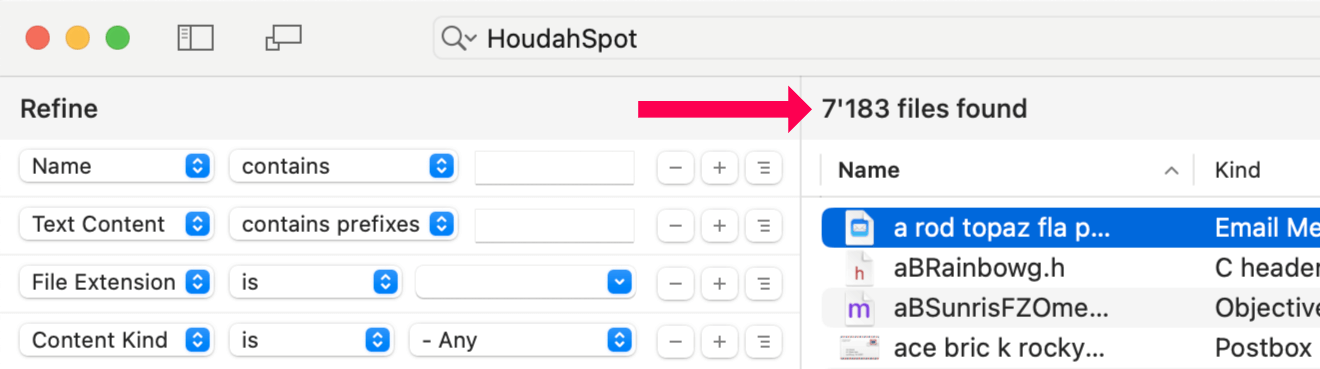
Hit Return and watch the results roll in. HoudahSpot will typically return thousands of matches. That’s fine—we want this. The next steps are all about sculpting this mass of information into something manageable.
As the results come in, use:
-
Metadata columns to sort and surface patterns
-
Quick Look preview to confirm visual relevance
-
Text preview to check keyword context
You’re not trying to find the right file yet. You’re scanning for clues.
Prune Irrelevant Folders With a Single Drag
Often, you’ll spot files that clearly don’t belong—maybe they come from a completely unrelated project, client, or class assignment.
Select one such result.
At the bottom of the window you’ll see its full path.
From there, drag the folder containing that file to the bottom area of the Locations list in the left sidebar.
This instantly adds a location exclusion.
Files from that folder will no longer appear in your search results.

This technique is brutally efficient. You can prune entire branches of your file system tree at once—whole projects, archive folders, or external drives that happen to contain matching text but have nothing to do with this search.
Repeat this a few times and you’ll watch your search results tighten dramatically.
Focus the Search: Replace the Search Location
Sometimes you discover the opposite:
A result is relevant—and so is everything around it.
In that case, drag the folder from the file’s path to the top of the Locations list. This replaces your current search location with that specific folder.
Your search now focuses on a single, highly relevant directory tree.

This is even more brutal than exclusion—but in a good way. Your search collapses to the one area of your Mac where the answer almost certainly lies.
Refine Using “Find by Example”
(Read more: Find by Example – How to Locate Files Fast When Finder Fails )
While browsing results, you’ll sometimes notice a file that shares a property with the files you’re actually looking for:
-
Same modification date
-
Same file type
-
Same camera model
-
Same author
-
Same project structure
When you spot such a file, drag it directly onto an existing criterion in the Refine section.
The criterion updates to match files that share that trait.

Example:
You remember that you exported a JPEG and created its Photoshop source file on the same day. Drag the JPEG onto the Date Modified criterion, and HoudahSpot updates the date filter accordingly.
This removes guesswork. You let an existing example guide your search.
Use the Details Pane to Discover Useful Metadata
To the right of the results list, the Details pane has three powerful helpers:
-
Quick Look preview
-
Text preview
-
Info pane — your secret weapon for refinement
The top of the Info pane shows a summary: name, dates, size, keywords, comments, and more.
Below that is a complete list of metadata attributes known for the file.
This does two things:
-
It helps you judge relevance.
-
It shows you what metadata you can search by.

For example, an image file may reveal:
-
Pixel width and height
-
Color profile
-
ISO, f-stop, shutter speed
-
Device model
-
Lens information
If you see that the images you want were all 4032 × 3024, set a size criterion in the Refine pane. If you notice that only photos from a specific camera model matter, refine your search based on the camera metadata.
Create Refine Criteria Directly From Metadata
The Info pane also supports drag-and-drop and contextual actions.
If you see a useful attribute—say Device model—you can:
-
Right-click the line and choose a refinement command, or
-
Drag the item directly into the Refine pane
HoudahSpot creates the appropriate search criterion instantly.

This turns every result into a potential “clue” that helps you shape the query.
A Smarter Way to Search: Iterate, Don’t Guess
With HoudahSpot, a search doesn’t have to be perfect from the beginning.
Instead:
-
Start broad
-
Observe patterns in the results
-
Prune irrelevant locations
-
Focus on relevant folders
-
Use examples to refine criteria
-
Leverage metadata to fine-tune the search
Using drag-and-drop shortcuts and the Info pane’s metadata, you can iteratively zero in on exactly what you need—without wrestling with complex search syntax or trying to remember everything upfront.
This is search as an interactive, visual process.
And once you try it, you’ll never want to search any other way.