
If you use Alfred, Raycast, or LaunchBar, you already know how powerful they are. Hit a hotkey, type a few letters, and you’re off — apps launch, calculations run, clipboard history appears.
These launchers are some of the best productivity tools available on macOS.
They can also help you find files on your Mac. But that’s where things can get a little confusing.
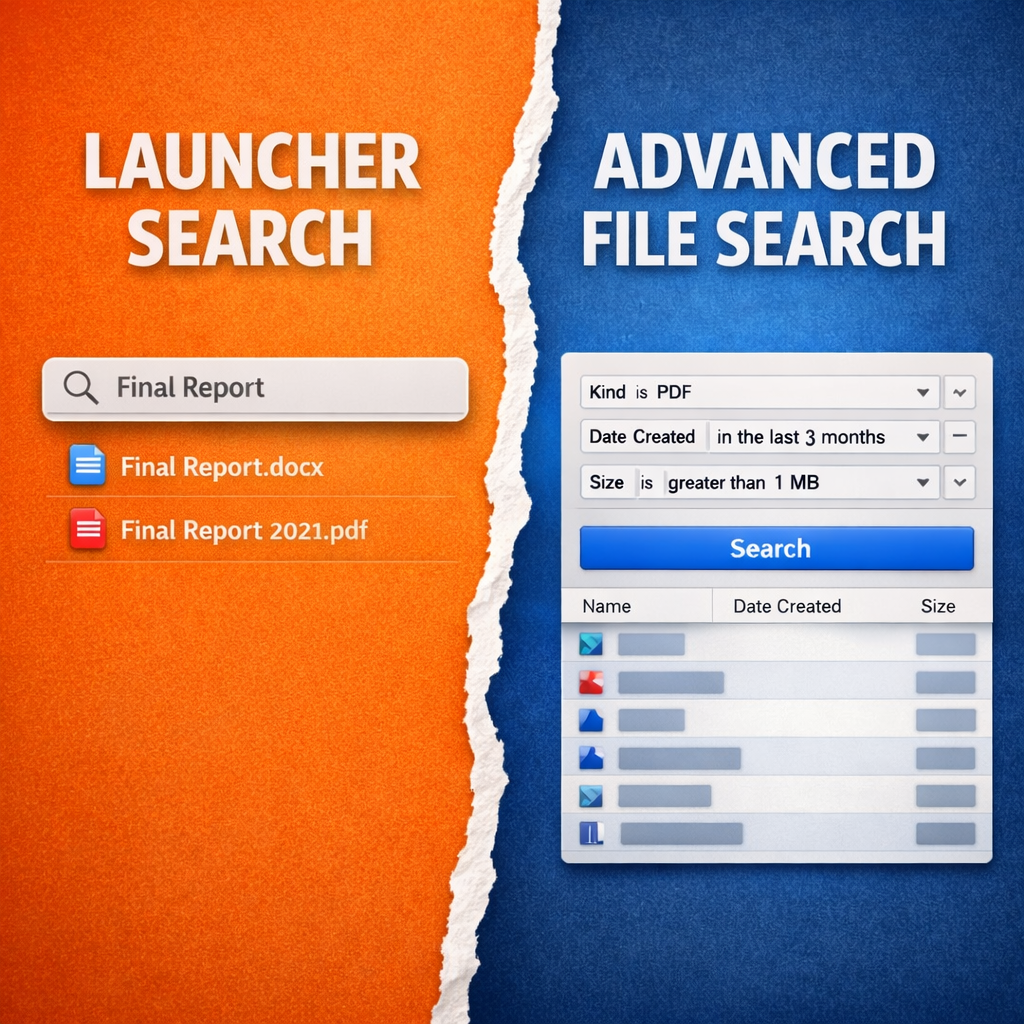
Launchers can include file search, but they’re designed primarily for fast name-based lookups, not for advanced file search. When you need to find files by metadata, content, date, or other attributes, a dedicated tool becomes much more useful.
What Launchers Do Well
When you type a file name into Alfred, Raycast, or LaunchBar, you’ll usually find it quickly. For the common case — “I know roughly what this file is called, I just want to open it” — launchers work extremely well.
They excel at fast, fuzzy matching and prioritizing recently used files. That makes perfect sense for an app launcher.
LaunchBar in particular goes further than most. Beyond launching apps, it’s also one of the best clipboard managers on macOS, with deep clipboard history, persistent clipping across restarts, and a keyboard-first design that rewards investment.
If you’re not using LaunchBar’s clipboard history, you’re leaving one of its best features on the table.
But when launchers search for files, they typically prioritize speed and convenience over structured search. They’re optimized for quickly opening something you already have in mind.
Where Launchers Run Into Trouble
The limitations start to show in real workflows where you need more precise control over your search.
For example:
-
Find all PDF files created last quarter in a project folder that are larger than 1 MB.
-
Show me photos taken at a specific location, sorted by date.
-
Find every document that contains the phrase “final invoice” in its text.
Launchers generally aren’t designed for this type of search.
They prioritize fast name matching rather than structured metadata queries. That means they typically don’t expose filters like:
-
date ranges
-
file sizes
-
GPS location names
-
EXIF camera information
-
document authors
-
content search across large sets of files
They also don’t provide a way to combine multiple conditions or create saved searches you can run again later.
That’s not a flaw — it’s simply a different job.
A hammer is not a screwdriver.
What HoudahSpot Is Actually For
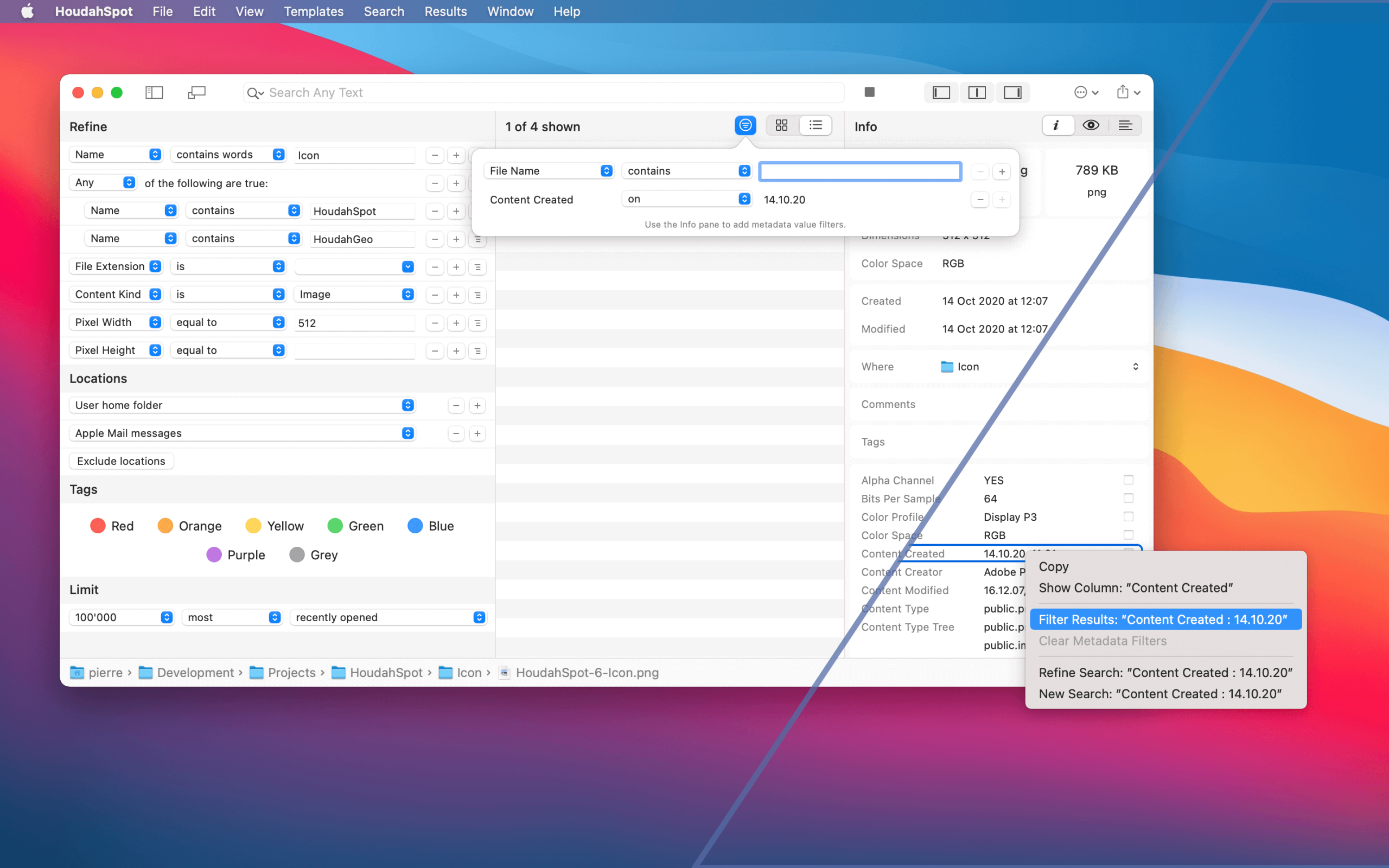
HoudahSpot is a file search tool for macOS built on Spotlight’s metadata index.
Instead of guessing a file name, you can define exactly what you’re looking for using a visual search builder.
Every search criterion becomes an explicit condition, such as:
-
file name
-
file type
-
text content
-
date modified or created
-
file size
-
author
-
image resolution
-
audio sample rate
-
or dozens of other Spotlight metadata attributes
You can combine these conditions with AND,OR, and NOT logic, restrict searches to specific folders, and save searches as reusable templates.
In other words, HoudahSpot lets you search files on your Mac the way a database works — by combining precise conditions instead of relying on fuzzy guesses.
The results are not ranked by recency or frequency. They are exact matches to the criteria you define, displayed with customizable columns, sorting, and grouping.
That precision is the whole point.
Launchers and File Search Tools Are Complementary
Launchers and dedicated file search tools are not competitors. In fact, they work very well together.
HoudahSpot integrates with Alfred, Raycast, and LaunchBar, allowing you to trigger a HoudahSpot search directly from your launcher, often scoped to the current folder.
A workflow that works well for many people looks like this:
-
Use a launcher for quick name-based lookups and everyday tasks
-
Use HoudahSpot for advanced file search on macOS
-
Use Finder for browsing and navigating folders
Each tool focuses on what it does best.
LaunchBar for launching and clipboard history.
HoudahSpot for structured search.
Other Mac File Search Tools Worth Knowing
There are several other dedicated file search apps on macOS worth being aware of.
EasyFind is free and searches the filesystem directly without relying on a Spotlight index. That makes it useful for external drives or situations where Spotlight indexing is unavailable.
Find Any File offers deep filesystem access and can locate files that normal Spotlight-based tools cannot see.
NeoFinder specializes in cataloging storage volumes so you can search them even when they are offline. It scans external drives, NAS volumes, and archive media and stores a searchable catalog of their contents. This makes NeoFinder particularly useful for large collections spread across many disks, where you need to know which drive contains a file before connecting it.
Each tool fills a slightly different niche.
HoudahSpot’s focus is powerful, metadata-rich searches built on Spotlight, with a visual query builder designed for repeatable searches and large collections of files.
If your file-finding needs go beyond “what did I call this file?”, it’s worth the time to learn.