
If you manage a large collection of documents—research notes, reference material, project files—you already know that search matters just as much as storage. DEVONthink 4 is excellent at organizing and connecting
information, while HoudahSpot offers one of the most flexible search interfaces on macOS. Used together, they turn searching into something both faster and more precise.
What Each Tool Does Best
DEVONthink 4 is built for serious document management and knowledge work. It helps you:
- Organize large document collections with intelligent filing
- Create meaningful links between related items
- Store PDFs, web archives, emails, bookmarks, and more
- Surface relevant content using AI-assisted features
- Build a long-term personal knowledge base
HoudahSpot takes macOS Spotlight and makes it far more powerful. It gives you:
- A visual, criteria-based query builder
- The ability to combine many file attributes in a single search
- Reusable search templates for recurring tasks
- Flexible rules for searching across locations and file types
- A focused interface that avoids Finder’s clutter
The Gap: Searching Across Everything
DEVONthink’s built-in search is strong, but there are times when you want more control. For example, you might want to:
- Search multiple DEVONthink databases alongside regular files
- Combine criteria that aren’t easy to express in DEVONthink’s UI
- Use the same search interface for all your data
- Reuse carefully tuned searches for common tasks
- Filter quickly by attributes like date, size, or document type
That’s where HoudahSpot comes in.
The Payoff: HoudahSpot + DEVONthink
Once Spotlight indexing is enabled, HoudahSpot can search the contents of your DEVONthink databases just like any other files on your Mac. Your DEVONthink items appear in HoudahSpot results, and you can apply the same powerful
filters and refinements you already use elsewhere.
The advantage is simple: you get HoudahSpot’s full search flexibility across your entire DEVONthink library, without switching tools or learning a new workflow.
One-Time Setup: Enable Spotlight Indexing
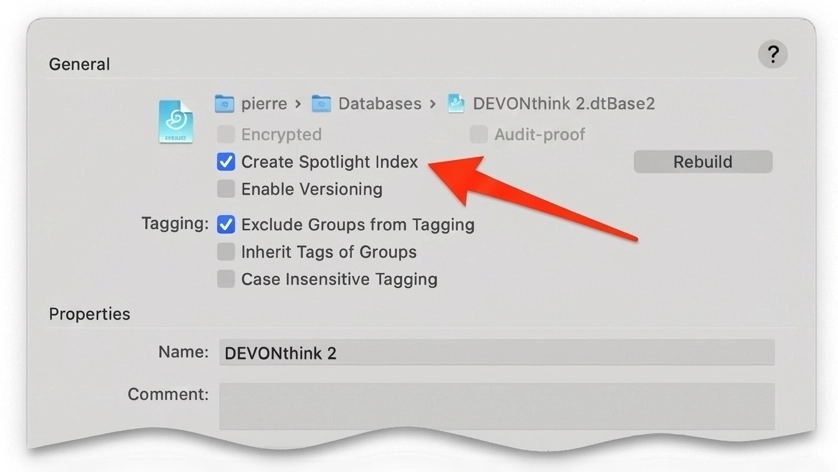
To make DEVONthink content searchable through HoudahSpot, Spotlight indexing must be enabled for each database. This only needs to be done once per database.
- Select a database in DEVONthink 4
- Open Database Properties
- Choose File → Database Properties…
- Enable Spotlight indexing
- Tick the “Create Spotlight Index”checkbox
- Dismiss the popover
DEVONthink will then add the database contents to the macOS Spotlight index. In HoudahSpot, these items appear as .dt files (DEVONthink 4 uses .dt instead of the older .dt3 or .dtp2 extensions).
A Quick Start: The DEVONthink 4 Search Template
HoudahSpot includes a ready-made search template called DEVONthink4.hstemplate. It’s set up to
search both DEVONthink 3 and DEVONthink 4 databases, which is useful if you’re migrating or maintaining older
archives.
To use it:
- Download the DEVONthink4.hstemplate file
- Double-click it to open in HoudahSpot
- Start searching right away
No manual configuration required.
Running Searches
Once indexing is enabled, searching works exactly as you’d expect:
- Open HoudahSpot and load the DEVONthink 4 template (or start a new search)
- Enter your search terms
- Review results from your DEVONthink databases alongside other matching files
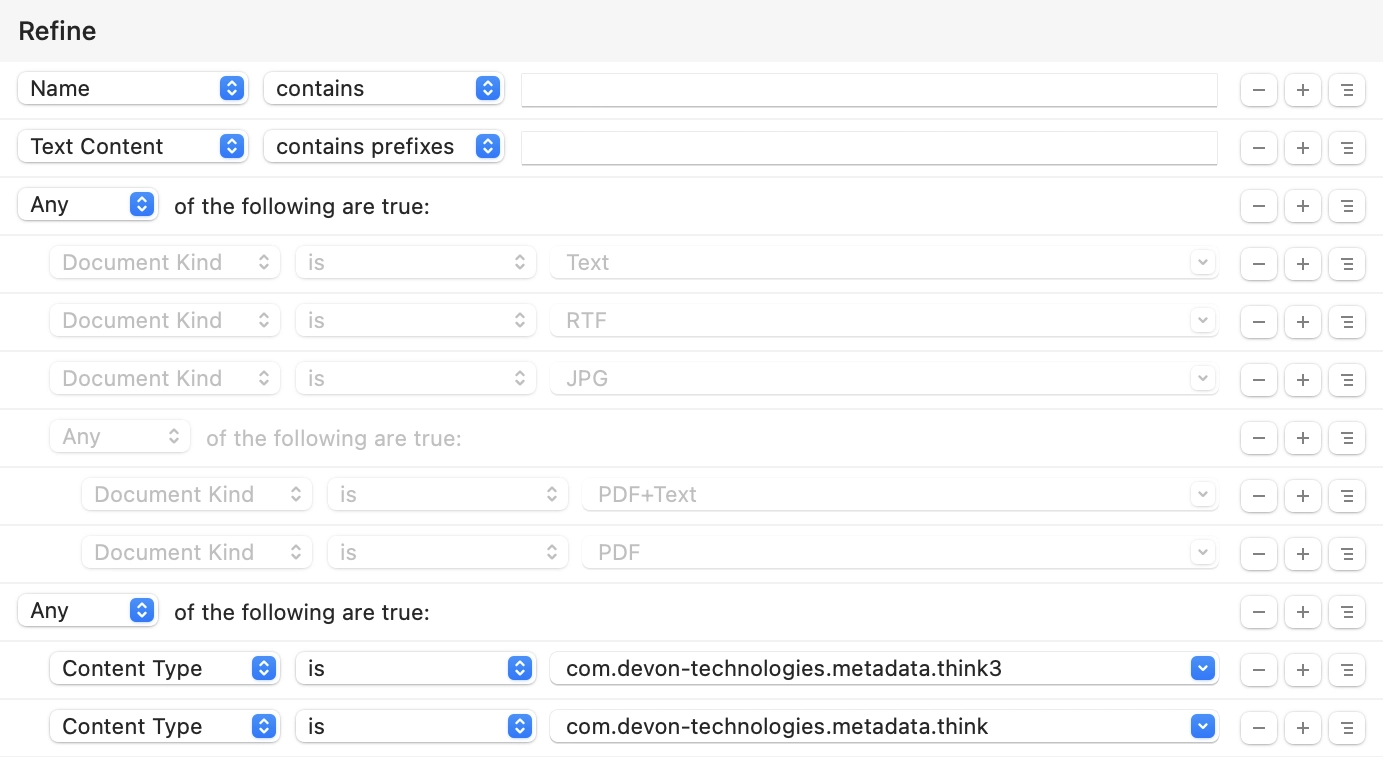
The provided template already includes key criteria. These ensure HoudahSpot finds items stored inside DEVONthink databases, regardless of version.
Narrowing Results with Document Kind Filters
One especially useful feature of the DEVONthink 4 template is the set of Document Kind criteria in the Refine pane. These criteria are disabled by default, so your initial searches stay broad—but they’re ready whenever you need to narrow things down.
Common Document Kind values include:
PDF+Text— searchable PDFs (OCR or embedded text)PDF— image-only PDFsRTF— Rich Text documentsJPG— image files
Enabling a Document Kind Filter
- Open the Refine pane in HoudahSpot
- Locate the disabled Document Kind criterion
- Right-click (or Control-click) it to open the context menu
- Choose Enable
Results update instantly. For example, enabling PDF+Text limits the search to searchable PDFs only.
Tip: Finding All PDFs at Once
If you want both image-only and searchable PDFs, set the Document Kind criterion to “begins with PDF”. This matches both PDF and PDF+Text, saving you from running separate searches.
Discovering Your Own Document Types
DEVONthink uses different Document Kind values depending on what you store. To see what’s in your databases:
- Run a DEVONthink search in HoudahSpot
- Select a result
- Open the Info panel (⌘I)
- Look for the Document Kind attribute
- Build custom criteria based on what you find
You may uncover values like pages, xls, or Formatted Note, which can be
useful for more targeted searches.
Customize to Fit Your Workflow
The provided template is just a starting point. Over time, you might want to:
- Add date filters for recently changed documents
- Combine multiple Document Kind rules
- Save your refined searches as new templates
- Limit searches to specific DEVONthink databases
HoudahSpot’s visual query builder encourages experimentation, making it easy to adjust searches until they return
exactly what you want.
Wrapping Up
By combining HoudahSpot’s search flexibility with DEVONthink 4’s document management, you get a system that scales with your work. Enable Spotlight indexing once, and your entire DEVONthink library becomes searchable through an interface designed for precision.
Whether you’re researching, managing long-term projects, or maintaining a personal knowledge base, this setup lets you search your data your way—quickly, consistently, and with far more control.
Ready to try it? Download the DEVONthink4.hstemplate, enable Spotlight indexing in your databases, and start searching with confidence.