
Geotags — location information — are an integral part of your photo: just like the image shows what you saw, the timestamp tells you when you captured the memory, and the geotag reveals where you found a location worth capturing.
When exporting, reusing, or sharing photos, you want that location information to tag along
If you drag photos out of Apple Photos and the location data is missing, there’s a single setting behind it.
Go to Photos > Settings > General, then look under Sharing for “Include location information.” It’s on by default, but if it’s off, your exported files lose their GPS coordinates.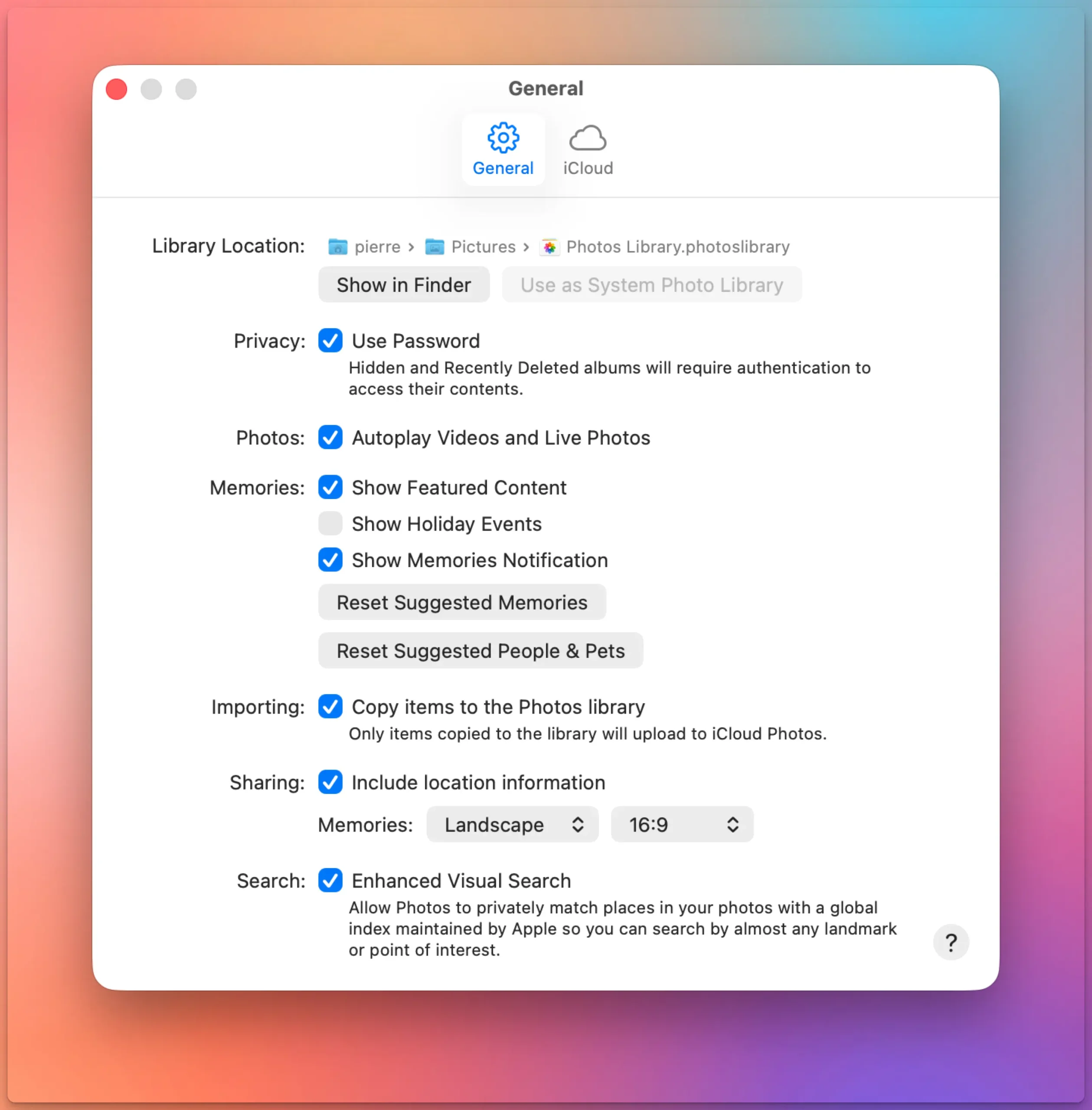
This isn’t Apple being careless. GPS coordinates are sensitive, and the company treats them as something you should explicitly choose to share, not something that tags along by default.
We tested this setting across the main ways people get photos out of their library, and confirmed it controls all of them:
| Operation | Affected by the setting? |
|---|---|
| Drag photos to Finder | Yes |
| Drag photos into Mail | Yes |
| Share Sheet (Messages, AirDrop, etc.) | Yes |
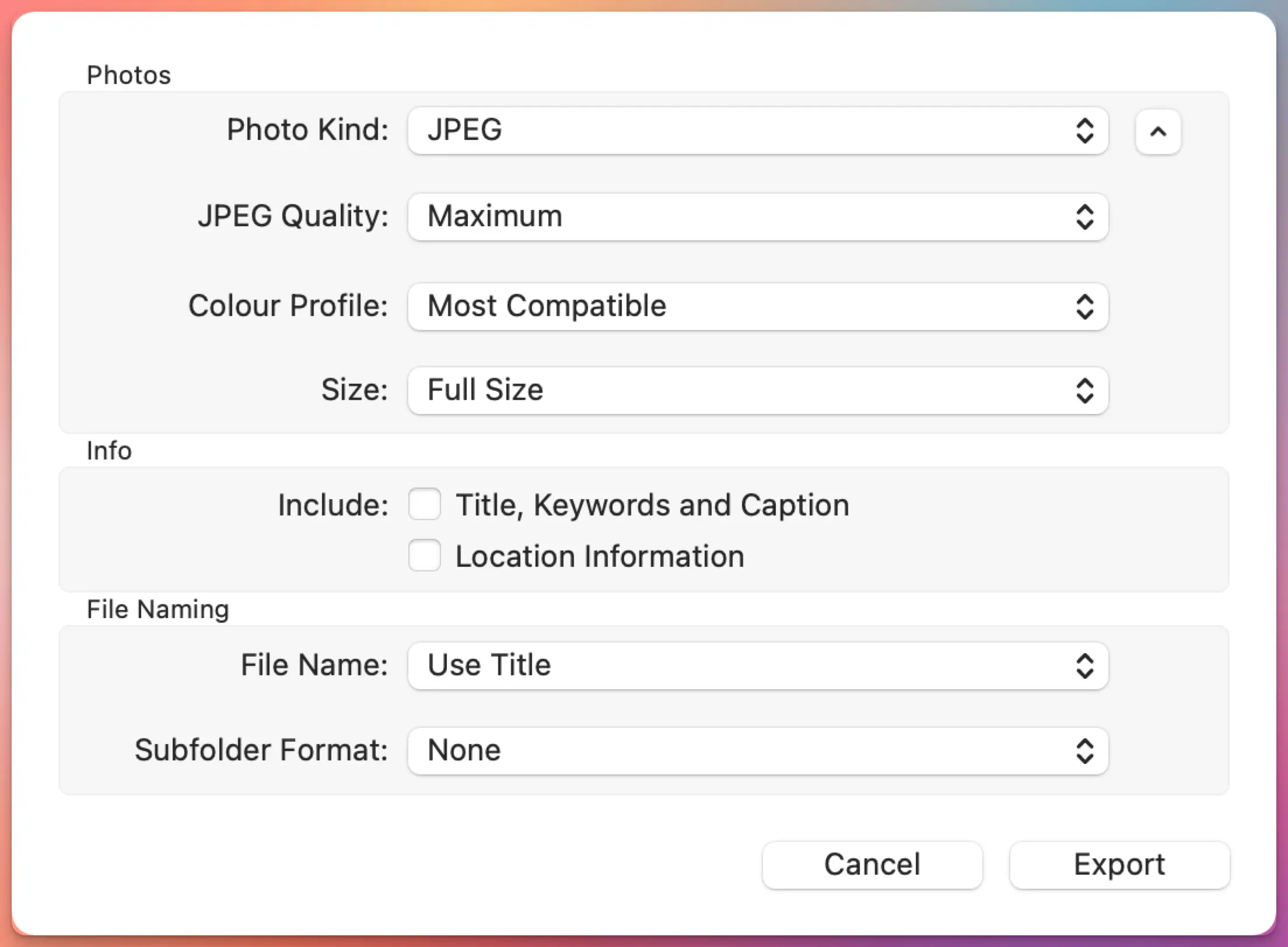
| File > Export | Has its own separate “Location Information” checkbox |
Export is the one exception. It doesn’t read the General setting at all — it has its own checkbox right in the export dialog, so you can override your default per export.
While we always recommend you geotag your photos — geotagging adds to the storytelling of your photos and helps with archival and retrieval — you may want to be careful about sharing location information. You may not want to share your home address or the location of endangered wildlife. Apple Photos’ export options are just one level of protection against over-sharing.