Geotags — location information — are an integral part of your photo: just like the image shows what you saw, the timestamp tells you when you captured the memory, and the geotag reveals where you found a location worth capturing.
When exporting, reusing, or sharing photos, you want that location information to tag along
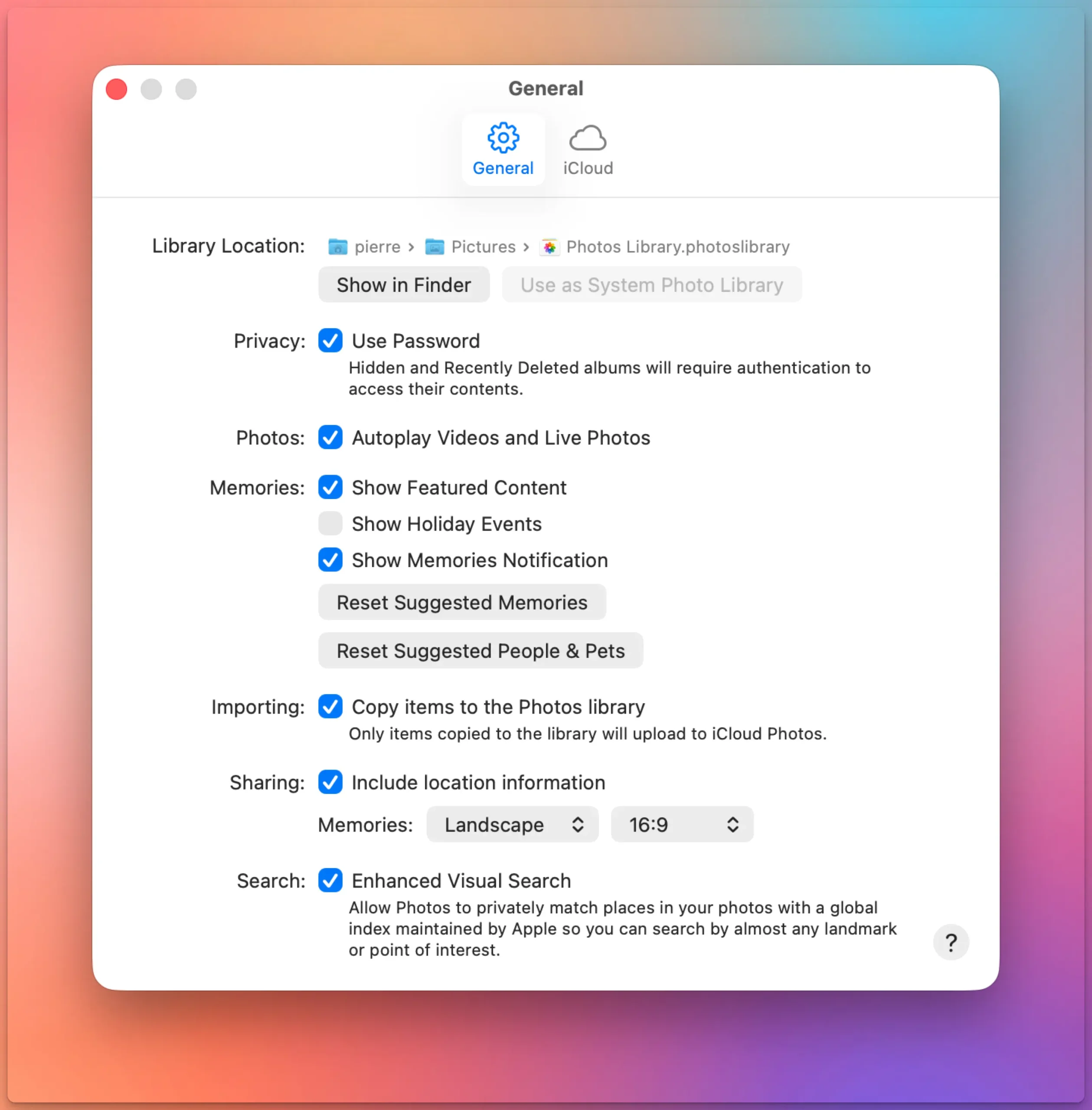
If you drag photos out of Apple Photos and the location data is missing, there’s a single setting behind it.
Go to Photos > Settings > General, then look under Sharing for “Include location information.” It’s on by default, but if it’s off, your exported files lose their GPS coordinates.
Your iPhone geotags every photo automatically. Your DSLR or mirrorless camera almost certainly does not. Sometimes your best photos and most precious memories lack geotags.
That gap — between smartphone shots that know where they were taken and camera shots that don’t — is the whole reason geotagging software exists.
If all your photos come from a phone, you probably don’t need this article. But if you shoot with a dedicated camera, or if you care whether your location data survives a switch from one app to another, read on.
Know where you took that photo
By adding geotags to your photos, you basically “pin” them to the places they were taken. Geotags create a permanent record of where a photo was taken.
They allow photo cataloging tools like Apple Photos and Adobe Lightroom to organize photos by location.
Geotags add to the “story” of a photo. A photo pinned to a map – at the exact spot where it was taken – has context. A series of tagged photos documents the path taken. There are several options to share your photos with their geoinformation. Google Photos and Flickr for example can show their location an map. With Google My Maps or Google Earth, you can display a series of photos pinned to their locations.
Google Photos: a photo and its metadata, including a map
Find that photo
Years from now, you may not remember when you took the photo you are looking for. But you will remember roughly where you took it.
Sometimes, you need to find a good picture of a specific spot. For example, you want to illustrate a blog post on the Golden Gate Bridge. Over the past years, you’ve visited the site several times and took a lot of different pictures. In this case, searching by date will prove arduous. Consulting a map with all your images represented by pins is a lot more efficient.
Map View in iPhoto: Pins represent pictures taken at these locations
We’ve been dreaming about trekking to the top of Mount Kilimanjaro for quite some time. Last October, we finally made the trip. Climbing Africa’s highest mountain, crossing its different climatic zones and finally reaching the summit was an amazing once-in-a-lifetime experience. We documented this unique vacation by taking hundreds of photos – and by recording a track log.
Looking through rainforest foliage at the snow-covered peak of Mount Kilimanjaro
The Services feature in macOS allows you to quickly perform actions – no matter what application you’re working in. HoudahSpot provides the following Services to start new searches from right where you currently are:
Search in HoudahSpot
Search Folders in HoudahSpot
New HoudahSpot Search
Services are available system-wide. Just choose Services from any application’s main menu or from the context menu. Assigning a keyboard shortcut to a Service makes access even faster.
In macOS, it’s possible to hide folders. The user Library folder, for example, is hidden by default. Hidden folders are invisible to the Finder and don’t show up in open/save dialog boxes.
In Mac OS X’s Finder, you can save searches as “Smart Folders”. These give you quick access to all your files that meet certain criteria. For example, all Microsoft Word files modified this month. All JPG photos taken with a specific camera. Or all e-mails you’ve received from certain senders within the last seven days.
Because Mac OS X Smart Folders are actually saved searches, they differ from regular folders: they don’t actually hold anything – they only list files stored elsewhere. The content of Smart Folder is not static but dynamic. It is updated continuously as new files come to meet the smart folder’s search criteria. This means that its content changes every time files on your Mac are added, changed, or removed.
With HoudahSpot (4.1 or later), you can easily set up a search and export it as a Finder Smart Folder.
In HoudahSpot, snippets let you to set aside frequently used combinations of search criteria. HoudahSpot comes with a few pre-installed snippets, but you can also define your own.
Snippets can hold a single search criterion or a group of criteria that serve a certain purpose. The pre-installed snippet “Date Created range”, for example, holds two criteria in an “All of the following are true” group: “Content created before” and “Content created after”. Use this snippet whenever you want to find files created in a range of dates.
Drag the snippet from the sidebar to refine pane (example: Date range snippet)
The Places feature introduced in HoudahGeo 5 allows you to save frequently used locations as favorites. This makes manual geotagging – picking locations from a map – way more efficient.
To provide the best experiences, we use technologies like cookies to store and/or access device information. Consenting to these technologies will allow us to process data such as browsing behavior or unique IDs on this site. Not consenting or withdrawing consent, may adversely affect certain features and functions.
Functional
Always active
The technical storage or access is strictly necessary for the legitimate purpose of enabling the use of a specific service explicitly requested by the subscriber or user, or for the sole purpose of carrying out the transmission of a communication over an electronic communications network.
Preferences
The technical storage or access is necessary for the legitimate purpose of storing preferences that are not requested by the subscriber or user.
Statistics
The technical storage or access that is used exclusively for statistical purposes.The technical storage or access that is used exclusively for anonymous statistical purposes. Without a subpoena, voluntary compliance on the part of your Internet Service Provider, or additional records from a third party, information stored or retrieved for this purpose alone cannot usually be used to identify you.
Marketing
The technical storage or access is required to create user profiles to send advertising, or to track the user on a website or across several websites for similar marketing purposes.