Clicky

Iteratively Refining Searches in HoudahSpot

When you don’t quite remember where your files are—or what exactly they were called—your best strategy is often to begin broad and narrow as you go. HoudahSpot excels at this workflow. It gives you powerful tools to incrementally refine a search based on what you see in the results.

This post walks through a highly effective technique: start with a flood of matches, then prune and shape your search using what you learn from those results. Along the way, we’ll use drag-and-drop shortcuts, location pruning, and Find by Example to quickly zero in on the files you want.

Start Broad: Let the Results Flow In

Begin by typing a few words into the main search field.
These might be:

  • Terms you expect in file names

  • Words likely to appear in text content

  • Keywords that “should” narrow things down—but maybe not enough
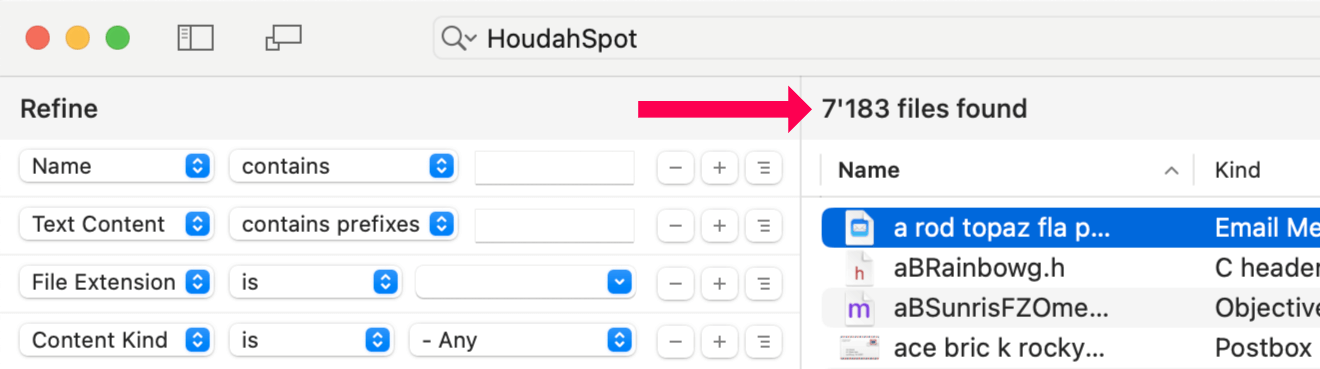
HoudahSpot search window showing a broad search with thousands of results

Hit Return and watch the results roll in. HoudahSpot will typically return thousands of matches. That’s fine—we want this. The next steps are all about sculpting this mass of information into something manageable.

As the results come in, use:

  • Metadata columns to sort and surface patterns

  • Quick Look preview to confirm visual relevance

  • Text preview to check keyword context

You’re not trying to find the right file yet. You’re scanning for clues.

Continue reading Iteratively Refining Searches in HoudahSpot

Non-Recursive Search: Find Top-Level Files Only

HoudahSpot searches “recursively” descend into subfolders: results will include files from the folder where you are searching as well as files from folders nested within that folder.

In HoudahSpot you can list folders where you want to search. You can also exclude folders (and their subfolders) from the search: just drag the folder from the breadcrumb path at the bottom of the HoudahSpot window to the Locations/Exclude list.

In most cases, you want search results to include nested items. You have organized your files in a folder hierarchy and are using a search tool to find files anywhere in a folder tree of related files.

Sometimes you want to see only results from the top-level folder. You can repeat the above procedure to exclude more folders. Excluding all subfolders, one by one would be tedious. We will use a filter instead. Continue reading Non-Recursive Search: Find Top-Level Files Only

Efficient File Searches using Filters

HoudahSpot uses the Spotlight index maintained by macOS. This allows for lightning-fast file searches and enables HoudahSpot to find all kinds of files by name, text content, and metadata.

Spotlight does have its limitations. Some of these affect HoudahSpot. While HoudahSpot lets you combine any number of search criteria to hone in on specific files, you however cannot find or exclude files by their path.

You can, of course, use HoudahSpot to search in multiple folders at once. HoudahSpot also allows you to exclude folders from your search.

Screenshot: Smart Folder Exclusion
Multiple search locations. Smart exclusion

You do, however, need to list the folders you want to search or exclude. Since the Spotlight index does not know about file paths, you cannot set up a criterion on file paths.

For example, you cannot configure a search to ignore all files where some parent folder is named Temporary. You’d need to explicitly list all such Temporary folders.

Fortunately, HoudahSpot can filter search results to hide unwanted results. A single filter can prevent all Temporary files from cluttering up your file search.

Continue reading Efficient File Searches using Filters

Finding Files with Long File Names

The native macOS file systems impose remarkably few restrictions on file names and path lengths. Mac users can name files with long names and descriptive names. Useful as these are, such file names can prove a burden when files need to be shared, copied to other file systems, or uploaded to certain cloud services.

Indeed many other systems limit the length of file names. Before attempting to move files to such systems it is useful to check names for compliance with restrictions. Hence the need to search file files with names longer than the imposed limit.

In this post, we are going to check a folder structure for files with names more than 140 characters long.

Acme Painted Tunnel Project Long File Names Continue reading Finding Files with Long File Names

Customize Your HoudahSpot Search Setup

In HoudahSpot, you can choose between hundreds of criteria to search for files. HoudahSpot also lets you specify in which folders to search and how to sort results.

There are lots of options to choose from – and settings you don’t want to make over and again.

Search criteria, results display, and sort order are a matter of personal preference and habits. You may, for example, find yourself frequently searching for files by file extension. You may prefer to search your full hard drive rather than just your home folder. You may want search results always to list file size.

Let’s see how you can set up HoudahSpot so that a new search window matches your preferred way of searching.

Continue reading Customize Your HoudahSpot Search Setup

Use “Service Station” to Start a HoudahSpot File Search From Finder

Service Station is a new utility by Knurling Group to customize the Finder context menu with applications and scripts. It is a free download with in-app purchases on the Mac App Store.Screenshot: Finder Context Menu with Service Station Extension

HoudahSpot by Houdah Software is a powerful file search tool for macOS. It takes the guesswork out of Spotlight searches and helps you find files hidden deep in the “haystack” of files accumulated over the years.

You can point HoudahSpot at a particular Finder folder using the Services menu or the HoudahSpot Finder toolbar item.

Service Station can put HoudahSpot at the top level of the Finder context menu. You can then right-click or control-click a selection of folders in Finder and start a new HoudahSpot search within these folders.

Continue reading Use “Service Station” to Start a HoudahSpot File Search From Finder

Customize Your HoudahSpot Search Setup

In HoudahSpot, you can choose between hundreds of criteria to search for files. HoudahSpot also lets you specify in which folders to search and how to sort results.

Lots of options to choose from – and settings you don’t want to make over and again.

Search criteria, results display, and sort order are a matter of personal preference and habits. You may, for example, find yourself frequently searching for files by file name extension. You may prefer to search your full hard drive rather than just your home folder. You may want search results to always list file size.

Let’s see how you can set up HoudahSpot so that a fresh search window matches your preferred way of searching.

Continue reading Customize Your HoudahSpot Search Setup

macOS Services: Quick Access to Searching with HoudahSpot

The Services feature in macOS allows you to quickly perform actions – no matter what application you’re working in. HoudahSpot provides the following Services to start new searches from right where you currently are:

  • Search in HoudahSpot
  • Search Folders in HoudahSpot
  • New HoudahSpot Search

Services are available system-wide. Just choose Services from any application’s main menu or from the context menu. Assigning a keyboard shortcut to a Service makes access even faster.

Continue reading macOS Services: Quick Access to Searching with HoudahSpot

Search for Top Level Files. Exclude Subfolders

HoudahSpot searches always go into subfolders. For example, when you search in your home folder, you can find letters saved to your Documents folder.

When you don’t want files from a subfolder to clutter search results, excluding the subfolder is easy: just drag the folder from the breadcrumb path at the bottom of the HoudahSpot window to the Locations/Exclude list.

You can repeat the procedure to exclude more folders. But if you want to see only results from the top level folder, it is easier to use the path filter to simply hide results from nested folders.

Continue reading Search for Top Level Files. Exclude Subfolders

How to Access Hidden Folders

In macOS, it’s possible to hide folders. The user Library folder, for example, is hidden by default. Hidden folders are invisible to the Finder and don’t show up in open/save dialog boxes.

What can you do if you need to access a hidden folder, e.g. when searching for a specific file within? Continue reading How to Access Hidden Folders