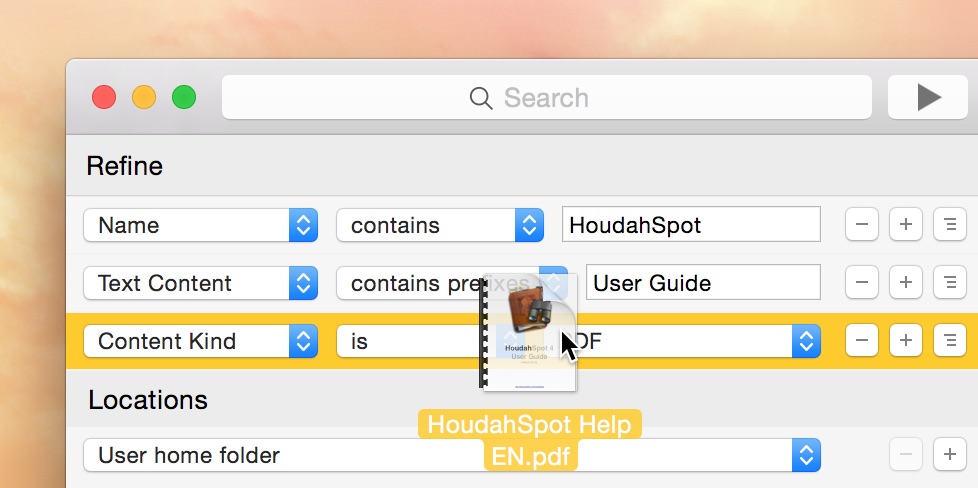
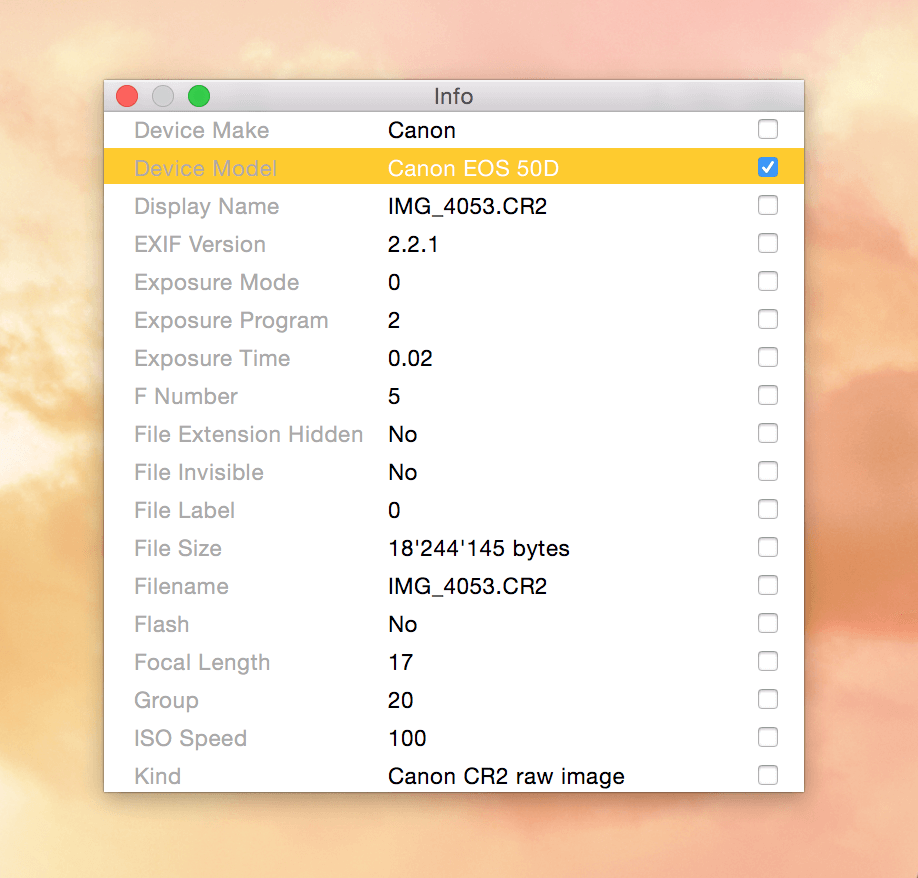
If you’ve ever searched for a file on your Mac using Finder (or even the Spotlight window) but come up empty — or you got tens of thousands of hits and still couldn’t find what you meant — you need a better approach. That’s where Find by Example in HoudahSpot comes in: you tell HoudahSpot “show me files like this one,” and it instantly narrows the search to mirror the example file’s properties.
Photos Workbench helps you easily rate, find, and cull your photos and videos, making your Apple Photos library more organized and manageable.
Rate Your Photos with Ease
Photos Workbench allows you to rate your photos and videos on a scale from 1 to 5 stars. While the exact meaning of each rating is up to personal preference, here is one suggested interpretation:
No star – Unrated. Still needs reviewing
★ (1 Star) – Rejected. Marked for deletion
★★ (2 Stars) – Keep without adjustments. May have emotional value
★★★ (3 stars) – Okay. Invest time into adjustments
★★★★ (4 stars) – Good. Worth sharing
★★★★★ (5 Stars) – Fantastic. Worth printing
Regardless of how you choose to use the star ratings, the better photos always get the higher rating. Thus, Photos Workbench offers filters allowing you to see items above a particular rating. For example, to see the standout shots of a given album, you can filter to show items rated “★★★★ or better.”
Filter Photos by Star Rating: 4-Star or Better
What if you wanted to see only photos with a specific rating?
In Photos Workbench, keyword palettes and keyboard shortcuts make it particularly easy to assign keywords to your photos. Photos Workbench can filter albums by keywords, allowing you to find or focus on a specific set of images.
Along with albums, keywords help you organize your images. Typically, albums group photos by event. Keywords are labels that describe the subject of a photo or properties of the photo. Examples: “Family”, “Landscape”, …, “Still-Life”, “Action”, …
Keywords can also be used to flag images you intend to work with or export. For instance, you can assign the keyword “Share” to all the photos you plan to add to the family’s shared album.
Favorite Keywords: Organize your pictures and flag those that you intend to share
HoudahSpot searches “recursively” descend into subfolders: results will include files from the folder where you are searching as well as files from folders nested within that folder.
In HoudahSpot you can list folders where you want to search. You can also exclude folders (and their subfolders) from the search: just drag the folder from the breadcrumb path at the bottom of the HoudahSpot window to the Locations/Exclude list.
In most cases, you want search results to include nested items. You have organized your files in a folder hierarchy and are using a search tool to find files anywhere in a folder tree of related files.
HoudahSpot uses the Spotlight index maintained by macOS. This allows for lightning-fast file searches and enables HoudahSpot to find all kinds of files by name, text content, and metadata.
Spotlight does have its limitations. Some of these affect HoudahSpot. While HoudahSpot lets you combine any number of search criteria to hone in on specific files, you however cannot find or exclude files by their path.
You can, of course, use HoudahSpot to search in multiple folders at once. HoudahSpot also allows you to exclude folders from your search.
Multiple search locations. Smart exclusion
You do, however, need to list the folders you want to search or exclude. Since the Spotlight index does not know about file paths, you cannot set up a criterion on file paths.
For example, you cannot configure a search to ignore all files where some parent folder is named Temporary. You’d need to explicitly list all such Temporary folders.
Fortunately, HoudahSpot can filter search results to hide unwanted results. A single filter can prevent all Temporary files from cluttering up your file search.
The native macOS file systems impose remarkably few restrictions on file names and path lengths. Mac users can name files with long names and descriptive names. Useful as these are, such file names can prove a burden when files need to be shared, copied to other file systems, or uploaded to certain cloud services.
Indeed many other systems limit the length of file names. Before attempting to move files to such systems it is useful to check names for compliance with restrictions. Hence the need to search file files with names longer than the imposed limit.
In this post, we are going to check a folder structure for files with names more than 140 characters long.
Finder tags are a useful way to categorize your files. They are color-coded labels that you can assign to files. You can use tags to flag certain files. For example, you may want to flag your favorite photos. You can also use tags to organize files. What makes tags particularly useful is that you can assign multiple tags to a file. A single file can be organized into different categories. Tag a file with “Acme Corp”, “Painted Tunnel Project”, “Invoice”, and “Past Due”. You can find the file when listing all correspondence with “Acme Corp”. You will find the same file when searching for “Past Due” and “Invoice”.
The true power of HoudahSpot lies in the fact that it helps you narrow down a search to the point where the list of results has only relevant files and is easy to manage. File information and previews then make it easy to quickly pick the files you actually need.
The tag cloud is the latest addition to your HoudahSpot file searching toolbelt. You can use the tag cloud to quickly find tagged files. The tag cloud is also a very powerful way to incrementally refine your search when you are looking for files.
HoudahSpot searches always go into subfolders. For example, when you search in your home folder, you can find letters saved to your Documents folder.
When you don’t want files from a subfolder to clutter search results, excluding the subfolder is easy: just drag the folder from the breadcrumb path at the bottom of the HoudahSpot window to the Locations/Exclude list.
You can repeat the procedure to exclude more folders. But if you want to see only results from the top level folder, it is easier to use the path filter to simply hide results from nested folders.
The HoudahSpotInfo pane shows all metadata Spotlight has recorded about a particular file. This includes generic attributes (file name, dates, etc.) as well as custom attributes filled in by the Spotlight importer responsible for indexing the file. You can use any of these attributes to find similar files.