Clicky

HoudahSpot 6.7: Faster File Search, Now in Polish

You know that file is somewhere on your Mac. You’re pretty sure about the name. Maybe. Or at least part of it. Spotlight shows you a bunch of results that definitely aren’t it.

This happens to me more than I’d like to admit, which is why we keep working on HoudahSpot. Version 6.7 is out now.

What’s new in 6.7

Polish localization. Big thanks to Lukasz Preihs for translating the entire interface. If you work in Polish, HoudahSpot now speaks your language.

The Text Preview got faster. When you’re searching through documents or code, Text Preview shows you where your search terms appear, highlighted in context. I use this constantly—it saves you from opening a dozen files just to find the right one. In 6.7, we optimized how it loads and renders, especially for larger files. You’ll notice the difference if you search through a lot of text documents.

macOS 26 Tahoe compatibility. If you’re running the latest version of macOS, HoudahSpot just works. We still support back to macOS Mojave.

Continue reading HoudahSpot 6.7: Faster File Search, Now in Polish
Iteratively Refining Searches in HoudahSpot

When you don’t quite remember where your files are—or what exactly they were called—your best strategy is often to begin broad and narrow as you go. HoudahSpot excels at this workflow. It gives you powerful tools to incrementally refine a search based on what you see in the results.

This post walks through a highly effective technique: start with a flood of matches, then prune and shape your search using what you learn from those results. Along the way, we’ll use drag-and-drop shortcuts, location pruning, and Find by Example to quickly zero in on the files you want.

Start Broad: Let the Results Flow In

Begin by typing a few words into the main search field.
These might be:

  • Terms you expect in file names

  • Words likely to appear in text content

  • Keywords that “should” narrow things down—but maybe not enough

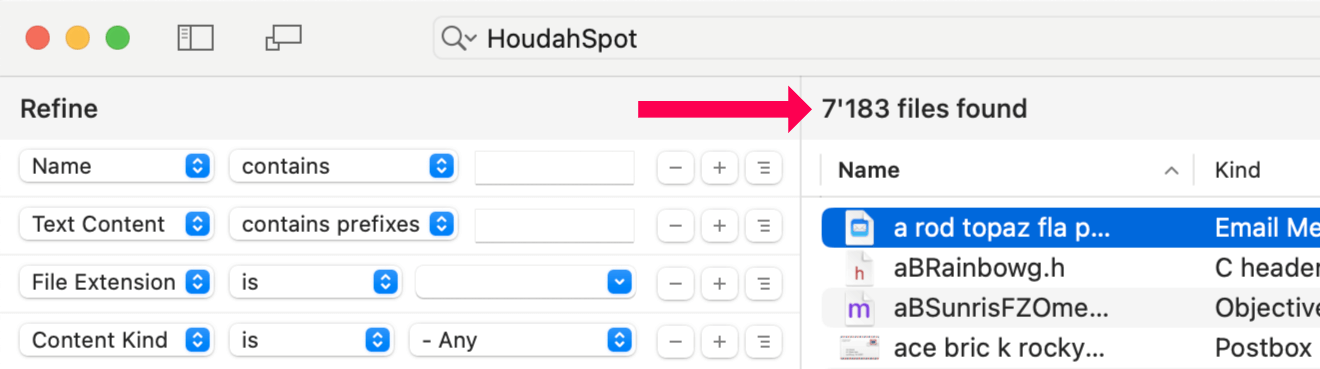
HoudahSpot search window showing a broad search with thousands of results

Hit Return and watch the results roll in. HoudahSpot will typically return thousands of matches. That’s fine—we want this. The next steps are all about sculpting this mass of information into something manageable.

As the results come in, use:

  • Metadata columns to sort and surface patterns

  • Quick Look preview to confirm visual relevance

  • Text preview to check keyword context

You’re not trying to find the right file yet. You’re scanning for clues.

Continue reading Iteratively Refining Searches in HoudahSpot

Supercharge Your DEVONthink 4 Search with HoudahSpot

If you manage a large collection of documents—research notes, reference material, project files—you already know that search matters just as much as storage. DEVONthink 4 is excellent at organizing and connecting
information, while HoudahSpot offers one of the most flexible search interfaces on macOS. Used together, they turn searching into something both faster and more precise.

What Each Tool Does Best

DEVONthink 4 is built for serious document management and knowledge work. It helps you:

  • Organize large document collections with intelligent filing
  • Create meaningful links between related items
  • Store PDFs, web archives, emails, bookmarks, and more
  • Surface relevant content using AI-assisted features
  • Build a long-term personal knowledge base

HoudahSpot takes macOS Spotlight and makes it far more powerful. It gives you:

  • A visual, criteria-based query builder
  • The ability to combine many file attributes in a single search
  • Reusable search templates for recurring tasks
  • Flexible rules for searching across locations and file types
  • A focused interface that avoids Finder’s clutter

The Gap: Searching Across Everything

DEVONthink’s built-in search is strong, but there are times when you want more control. For example, you might want to:

  • Search multiple DEVONthink databases alongside regular files
  • Combine criteria that aren’t easy to express in DEVONthink’s UI
  • Use the same search interface for all your data
  • Reuse carefully tuned searches for common tasks
  • Filter quickly by attributes like date, size, or document type

That’s where HoudahSpot comes in. Continue reading Supercharge Your DEVONthink 4 Search with HoudahSpot

No GPS Track? Create a Visual Journey from Geotagged Photos with HoudahGeo

HoudahGeo geocodes and geotags your photos and videos, embedding location information directly into the EXIF or XMP metadata—just like a GPS-enabled camera. If you’ve recorded a GPS track using a dedicated device or a smartphone app, HoudahGeo can precisely match your photos to locations along your route.

This makes it easy to see where each photo was taken and even export a Google Earth (KML) file to view your images placed along the recorded track.

But what if you didn’t record a GPS track?

These days, most of us rely on smartphones for photography. Fortunately, most modern phones automatically geotag your photos with location data. Even without a separate GPS track log, this metadata allows HoudahGeo to reconstruct a visual path of your journey.

Turn Geotagged Photos Into a Track Log

HoudahGeo can generate a track log from geotagged photos, linking them in the order they were taken. This creates a path that approximates your travels and places each photo at its location—perfect for viewing in Google Earth or mapping your trip retrospectively.

Create a GPS track log from photos

Continue reading No GPS Track? Create a Visual Journey from Geotagged Photos with HoudahGeo

Rate Your Photos with Ease

Photos Workbench seamlessly integrates with Apple Photos to help you organize, name, and compare your photos.

The Importance of Star Ratings

Star ratings are a powerful tool for organizing and culling your photos and videos. They help you identify your best images and categorize them by quality or relevance.

With Photos Workbench, you can assign star ratings to your photos and videos, ranging from 1 to 5 stars. While the interpretation of each rating is personal, here’s a suggested guide:

  • No star – Unrated. Still needs reviewing
  • ★ (1 Star) – Rejected. Marked for deletion
  • ★★ (2 Stars) – Keep without adjustments. May have emotional value
  • ★★★ (3 stars) – Okay. Worth investing time into adjustments
  • ★★★★ (4 stars) – Good. Worth sharing
  • ★★★★★ (5 Stars) – Fantastic. Worth printing

For tips on developing a workflow for star ratings, check out our previous blog post.

How to Assign Star Ratings

No matter how you choose to interpret star ratings or structure your workflow, Photos Workbench offers several efficient ways to assign ratings to your photos and videos.

Continue reading Rate Your Photos with Ease

macOS 15 Sequoia Compatibility

Excited for the latest macOS 15 Sequoia? Before you dive into the upgrade, check if your software is fully supported!

This year’s macOS upgrade paves the way for Apple Intelligence. macOS Sequoia does not bring major design or technical changes likely to cause problems for existing applications.

It should nonetheless be wise to hold off upgrading for at least a couple of weeks and give Apple a chance to fix remaining bugs.


HoudahSpot

HoudahSpot icon
HoudahSpot: Powerful File Search for Mac

HoudahSpot 6.5.5 has been updated to work great on macOS 15 Sequoia.

Apple Mail on macOS has stopped supporting plug-in with the release of macOS 14 Sonoma. Thus HoudahSpot can no longer search Apple Mail messages.


HoudahGeo

HoudahGeo icon
HoudahGeo: Photo Geocoding and Geotagging for Mac

HoudahGeo 6.4.5 has been tested to work with macOS 15.

We are putting the finishing touches to HoudahGeo 7.0. Expect a beta to become available soon.

Sign up for our newsletter to get the latest news.


Photos Workbench

Photos Workbench icon
Photos Workbench: Organize, Rate, and Compare your Photos

Photos Workbench 1.3 has been updated to look and work great with macOS 15 Sequoia.

Update to the latest version of Photos Workbench before upgrading to macOS Sequoia.


Tembo

Tembo icon
Tembo: Easy and Efficient File Search for Mac

Tembo 3.2.1 has been updated to work great on macOS 15 Sequoia.

Apple Mail on macOS has stopped supporting plug-in with the release of macOS 14 Sonoma. Thus HoudahSpot can no longer search Apple Mail messages.


CustomShortcuts

CustomShortcuts icon
Easy user-defined keyboard shortcuts

CustomShortcuts 1.2.1 has been updated for macOS 15.

CustomShortcuts is a free download from our web site.

Quickly Assess Photos Using Star Ratings

Photos Workbench seamlessly integrates with Apple Photos, providing powerful tools to help you organize, name, and compare your photos. The star rating system is one of the most effective tools in this suite.

The Importance of Star Ratings

Star ratings are invaluable for organizing and culling your photos and videos. They help you identify your best shots and classify images by relative quality or relevance, with ratings ranging from 1 star (worst) to 5 stars (best).

By rating your photos, you can streamline your library by removing the poor shots. This process makes deciding which pictures to share, publish, or print easier. Once your photos are classified, finding specific images becomes a breeze. Browsing your library to rekindle memories is also much more enjoyable when you can focus on the ★★★★ and ★★★★★ images.

Making the Process Enjoyable

While rating photos is an excellent opportunity to revisit memories, it can also be tedious work.

Assuming a 5-star rating is reserved for your best shots—those worthy of National Geographic—it should be relatively easy to identify them at first sight.

That would leave the 4-star rating for the best shots in the current album. However, determining the best photos without constantly comparing them can be challenging. The same holds for the 3-star rating for the best shots in a series of similar photos.

Assigning a rating can feel arbitrary. Would you give the same photo the same rating if you rechecked it the next day?

A structured workflow can simplify the process of assessing the relative quality of your photos.

Continue reading Quickly Assess Photos Using Star Ratings