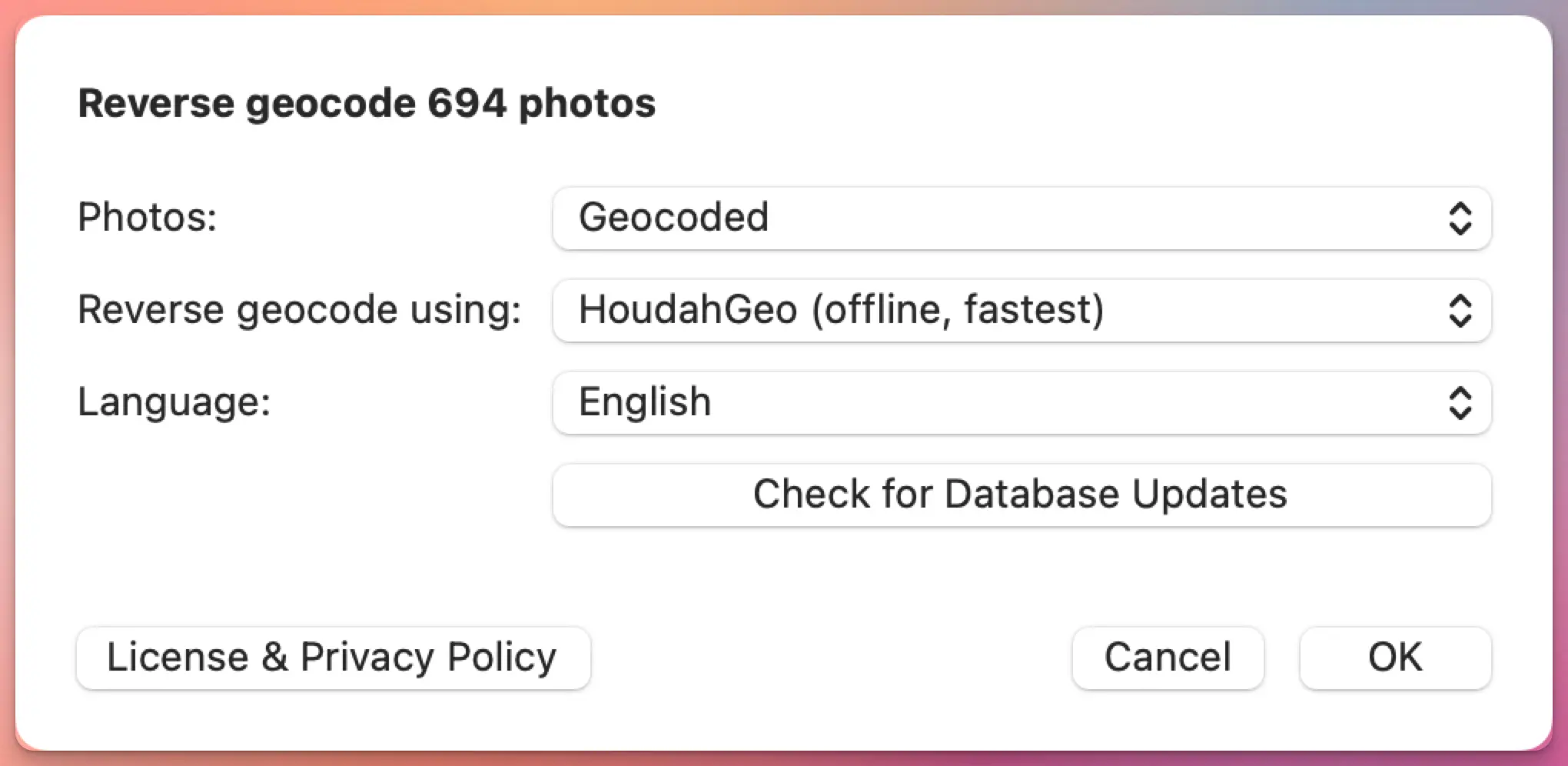
HoudahGeo 7.2 is out, and the headline feature is reverse geocoding: the process of turning GPS coordinates into a city, region, or country name.
If you shoot with a GPS-equipped camera or phone, your photos already carry latitude and longitude. What they don’t carry is the human-readable part. “47.0502, 8.3093” doesn’t mean much at a glance. “Lucerne, Switzerland” does. Reverse geocoding fills in that gap, and HoudahGeo has always let you choose which service does the filling.
With 7.2, there’s a new option, an improved one, and a more flexible way to use the ones you already had.
HoudahGeo 7.2 adds new reverse geocoding options. And a new service!
Geotags — location information — are an integral part of your photo: just like the image shows what you saw, the timestamp tells you when you captured the memory, and the geotag reveals where you found a location worth capturing.
When exporting, reusing, or sharing photos, you want that location information to tag along
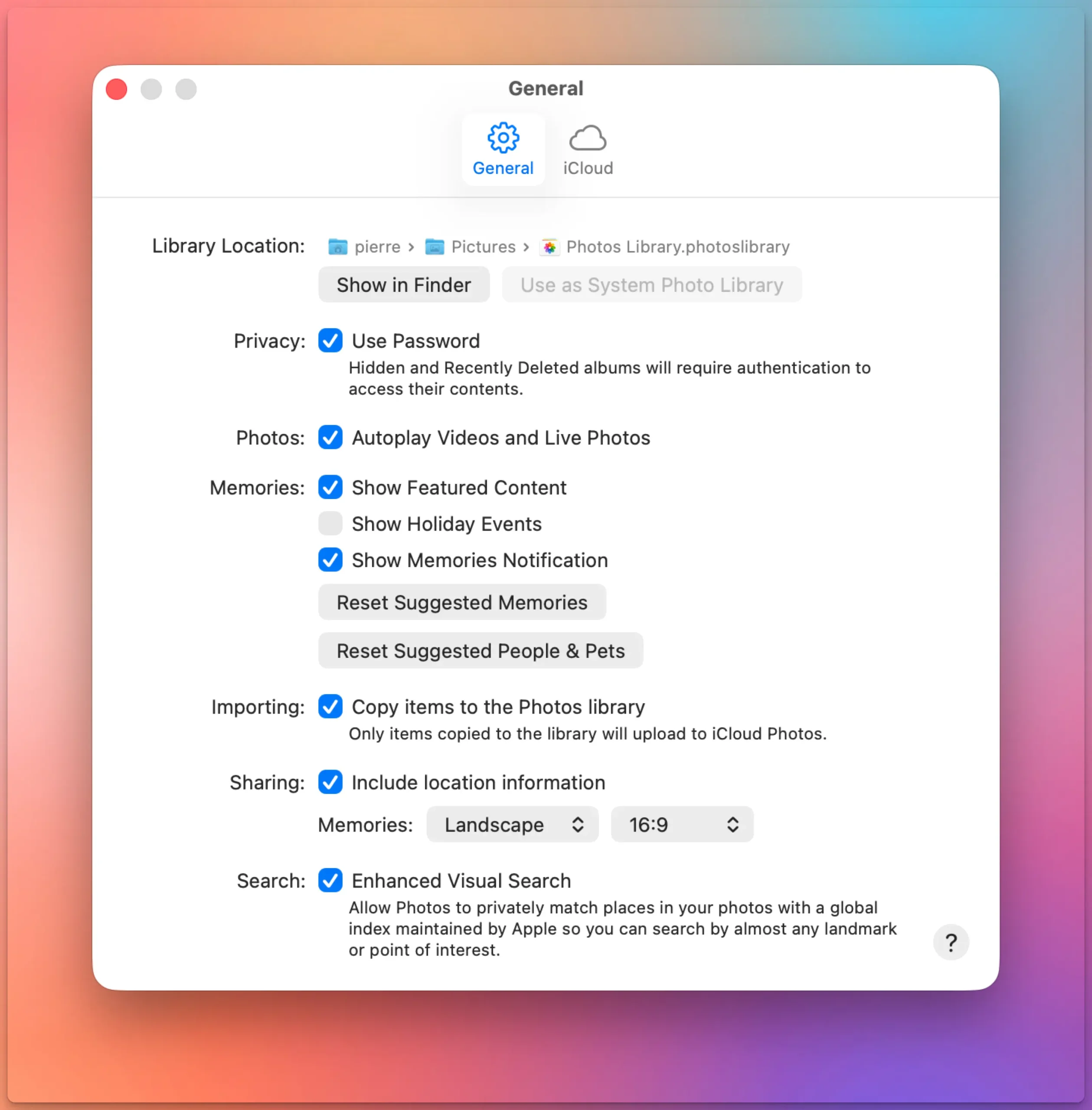
If you drag photos out of Apple Photos and the location data is missing, there’s a single setting behind it.
Go to Photos > Settings > General, then look under Sharing for “Include location information.” It’s on by default, but if it’s off, your exported files lose their GPS coordinates.
GPS track logs are one of the most reliable ways to geocode photos. Record a track during your shoot, match the timestamps, and software can determine where each photo was taken.
But what happens when there’s no track log?
Maybe you forgot to start recording. Perhaps the GPS app stopped midway through the hike. Or you just don’t want to run a tracking app every time you pick up your camera.
If you use Lightroom Classic, you’ve probably noticed that its geotagging tools depend heavily on GPX track logs. Without one, you’re largely left dragging photos onto a map by hand.
HoudahGeo offers a better option: geocoding photos using reference photos — images that already contain GPS coordinates. In many situations this is faster and more convenient than recording a track log.
What are reference photos?
A reference photo is simply a photo with a known location.
Most people carry a GPS-enabled camera in their pocket every day. Your iPhone or Android phone records GPS coordinates automatically whenever location services are enabled. Those geotagged phone photos can act as location anchors for the rest of your images.
Adobe Lightroom Classic has included GPS photo geotagging for many years. The Map module can load GPX track logs, match them to photo timestamps, and write GPS coordinates to your images. For many photographers, that’s all they need.
But if you’ve ever forgotten to record a track log, discovered your camera clock was wrong, or wished Lightroom could infer locations from nearby geotagged photos, you’ve probably run into the limits of its built-in tools.
HoudahGeo integrates with Lightroom Classic and handles the geocoding and geotagging tasks that Lightroom either doesn’t support at all or makes unnecessarily difficult.
Your iPhone geotags every photo automatically. Your DSLR or mirrorless camera almost certainly does not. Sometimes your best photos and most precious memories lack geotags.
That gap — between smartphone shots that know where they were taken and camera shots that don’t — is the whole reason geotagging software exists.
If all your photos come from a phone, you probably don’t need this article. But if you shoot with a dedicated camera, or if you care whether your location data survives a switch from one app to another, read on.
Know where you took that photo
By adding geotags to your photos, you basically “pin” them to the places they were taken. Geotags create a permanent record of where a photo was taken.
They allow photo cataloging tools like Apple Photos and Adobe Lightroom to organize photos by location.
Geotags add to the “story” of a photo. A photo pinned to a map – at the exact spot where it was taken – has context. A series of tagged photos documents the path taken. There are several options to share your photos with their geoinformation. Google Photos and Flickr for example can show their location an map. With Google My Maps or Google Earth, you can display a series of photos pinned to their locations.
Google Photos: a photo and its metadata, including a map
Find that photo
Years from now, you may not remember when you took the photo you are looking for. But you will remember roughly where you took it.
Sometimes, you need to find a good picture of a specific spot. For example, you want to illustrate a blog post on the Golden Gate Bridge. Over the past years, you’ve visited the site several times and took a lot of different pictures. In this case, searching by date will prove arduous. Consulting a map with all your images represented by pins is a lot more efficient.
Map View in iPhoto: Pins represent pictures taken at these locations
You switched to a Mac. Good. But now your geotagging workflow is broken — GeoSetter is Windows-only, and it always has been.
If you spent years building that habit — recording a GPX track on a hike, syncing it with your camera photos back at home, watching coordinates land in your EXIF data — you know how satisfying it is. You don’t want to give that up. You just need it to work on macOS.
HoudahGeo is the closest thing to a Mac equivalent. It covers the same core workflow: load your photos, import a GPS track log, let the software match timestamps and assign coordinates. It also supports manual geotagging by dropping photos onto a map, reverse geocoding to fill in city and country names, and writing everything to EXIF, XMP, and IPTC tags without recompressing your images.
HoudahGeo’s reverse geocoding goes beyond what GeoSetter offered: you can choose from five different services, including a fully offline option and a new BigDataCloud integration, depending on what your workflow needs. See how they compare.
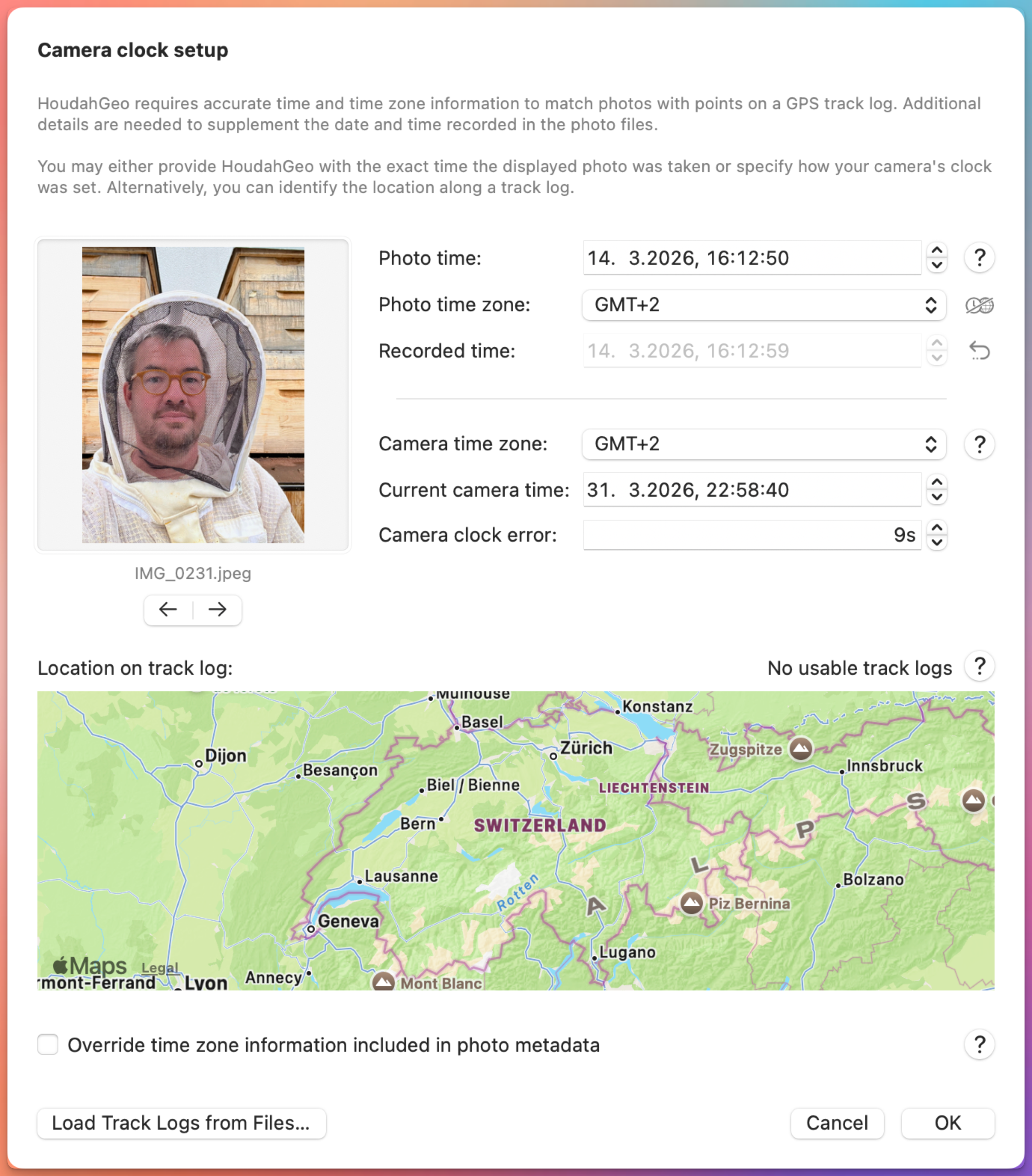
Have you ever tried to match photos with a GPS track log and ended up with pictures placed miles away from where they were taken. If your photos don’t line up with your GPS track log, or show up in the wrong place on the map, the camera clock is almost always the reason.
You might have been standing at a scenic overlook… but your photos show up a few steps or streets away—or even in the wrong city entirely. That’s not a GPS problem. It’s a camera time problem.
HoudahGeo matches photos to locations by comparing photo timestamps with GPS track logs. If those timestamps are even slightly off, the resulting locations will be too.
At first glance the window might look technical. In reality, it’s solving a very practical problem most photographers run into sooner or later — usually right after their first trip where they forgot to update the camera clock.
Here’s how each part works, and a few tips to make it go smoothly.
We are pleased to announce the release of HoudahGeo 7.1, a focused update that delivers one of the most requested features: visualization of viewing direction on the built-in map.
This release also:
improves map behavior with an off-screen target indicator
adds location coordinates copy & paste support from Apple Photos
introduces a French localization
and significantly reduces memory usage for photo previews.
HoudahGeo 7.1 – viewing direction visualized on built-in map
Todd Oltoff over at ScreenCastsOnline just published a full walkthrough of HoudahGeo 7, and it’s one of the more thorough tutorials we’ve seen of the app.
ScreenCastsOnline has been around for over 17 years and has built a solid reputation as a go-to resource for Apple software tutorials.
Their video goes through the entire HoudahGeo workflow from start to finish — loading photos from a camera or SD card, syncing a GPX track log to place images on a map, reverse geocoding coordinates into actual place names, and writing everything back to your files (or XMP sidecars, if you prefer).
HoudahGeo geocodes and geotags your photos and videos, embedding location information directly into the EXIF or XMP metadata—just like a GPS-enabled camera. If you’ve recorded a GPS track using a dedicated device or a smartphone app, HoudahGeo can precisely match your photos to locations along your route.
This makes it easy to see where each photo was taken and even export a Google Earth (KML) file to view your images placed along the recorded track.
But what if you didn’t record a GPS track?
These days, most of us rely on smartphones for photography. Fortunately, most modern phones automatically geotag your photos with location data. Even without a separate GPS track log, this metadata allows HoudahGeo to reconstruct a visual path of your journey.
Turn Geotagged Photos Into a Track Log
HoudahGeo can generate a track log from geotagged photos, linking them in the order they were taken. This creates a path that approximates your travels and places each photo at its location—perfect for viewing in Google Earth or mapping your trip retrospectively.
To provide the best experiences, we use technologies like cookies to store and/or access device information. Consenting to these technologies will allow us to process data such as browsing behavior or unique IDs on this site. Not consenting or withdrawing consent, may adversely affect certain features and functions.
Functional
Always active
The technical storage or access is strictly necessary for the legitimate purpose of enabling the use of a specific service explicitly requested by the subscriber or user, or for the sole purpose of carrying out the transmission of a communication over an electronic communications network.
Preferences
The technical storage or access is necessary for the legitimate purpose of storing preferences that are not requested by the subscriber or user.
Statistics
The technical storage or access that is used exclusively for statistical purposes.The technical storage or access that is used exclusively for anonymous statistical purposes. Without a subpoena, voluntary compliance on the part of your Internet Service Provider, or additional records from a third party, information stored or retrieved for this purpose alone cannot usually be used to identify you.
Marketing
The technical storage or access is required to create user profiles to send advertising, or to track the user on a website or across several websites for similar marketing purposes.